How to Remove Spyware From Your iPhone: Step-by-Step
If you have confirmed monitoring software on your iPhone, the next step is to remove spyware completely — not just hide it. Spyware that lingers keeps streaming your messages, location, and microphone to whoever installed it.
This guide walks you through how to remove spyware from your iPhone step by step: the quick wins, the deep clean, and when a full reset is the only safe option. It is written for cleaning your own device, not accessing anyone else’s.
This guide is for removing spyware from your own iPhone. Installing or removing monitoring software on someone else’s device without consent is illegal under federal and state law.
How Do You Know Spyware Is Really on Your iPhone?
Before you remove spyware, confirm it is actually there — many “symptoms” are just an aging battery or a buggy app. The goal is to separate normal wear from a genuine compromise.
If several signs appeared at once — especially after someone had access to your phone — treat it as real and remove spyware using the steps below. For a deeper detection walkthrough, see our guide on detecting hidden spy apps.
“The biggest mistake I see is people factory-resetting in a panic and restoring the same infected backup an hour later. You have to identify how the spyware got in first, or you just reinstall it. Confirm, then clean.”
Alex Rivera, CEH, OSCP
What Types of iPhone Spyware Do You Need to Remove?
iPhone spyware comes in a few distinct forms, and each is removed differently. Knowing which type you are dealing with tells you exactly where to look and what to delete.
Most real-world cases are profiles or Apple ID access — both quick to fix. Jailbreak spyware is rarer but needs the full reset covered later. Identify your type, then remove spyware using the matching method.
How Do You Remove Spyware From an iPhone Step by Step?
This is the core process. Follow it in order — securing the account before cleaning the device is what stops the spyware from simply reinstalling itself.
Update iOS as part of the cleanup — many spyware tools depend on an unpatched exploit, so a software update alone can disable them.
How Do You Remove Profiles and Unknown Devices?
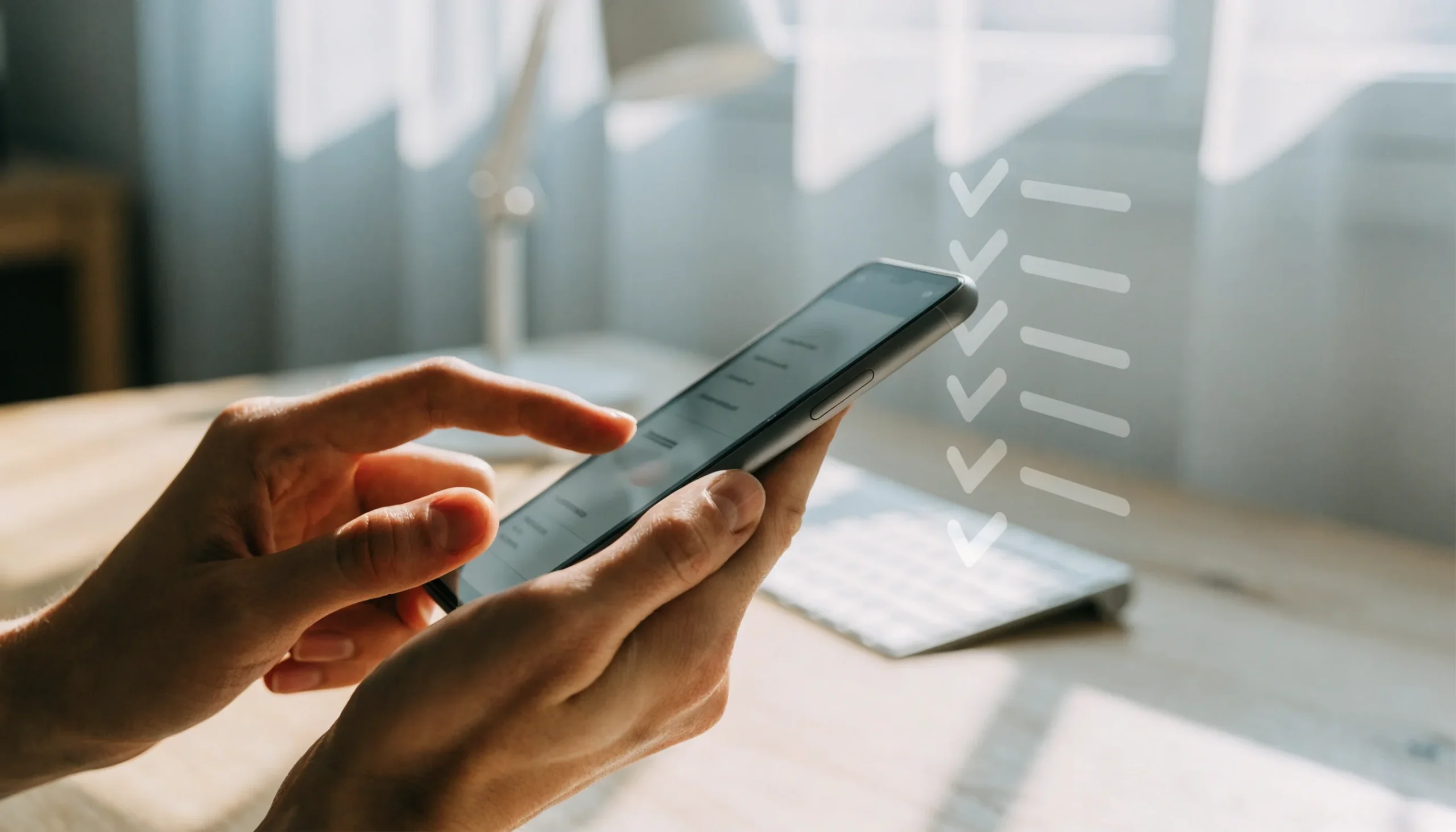
Configuration profiles and rogue signed-in devices are where iPhone stalkerware hides best. Clearing both closes the two most common doors an attacker keeps open.
| What to Remove | Where | How |
|---|---|---|
| Configuration / MDM profile | Settings → General → VPN & Device Management | Tap the profile → Remove Profile (enter passcode) |
| Unknown signed-in device | Settings → [your name] | Tap the device → Remove from Account |
| Text Message Forwarding | Settings → Messages → Text Message Forwarding | Toggle off any device you don’t own |
| Rogue app permissions | Settings → Privacy & Security | Revoke microphone, location, and camera for unknown apps |
| Suspicious VPN | Settings → General → VPN | Delete any VPN config you didn’t set up |
On a work or school iPhone, removing an MDM profile can wipe or lock the device. Confirm the phone is personally owned before you remove spyware-related profiles.
When Should You Factory Reset to Remove Spyware?
A factory reset is the nuclear option — guaranteed to remove spyware, including jailbreaks, but it erases everything. Reserve it for confirmed deep infections or when symptoms survive the steps above.
“A factory reset is only as clean as what you restore afterward. Set up as new, add apps manually, and change your passwords on a different device first. Skip those and the reset was pointless.”
Dr. Sarah Chen, Mobile Security Researcher
After setting up as new and re-securing your Apple ID, the iPhone is genuinely clean. A related attack that survives a reset is phone cloning, which targets your number rather than the device — worth understanding if charges or texts seem duplicated.
How Do You Keep Spyware Off Your iPhone After Removal?
Removing spyware once only helps if it stays gone. A few habits make it far harder for anyone to reinstall monitoring software on your iPhone.
If you legitimately need to monitor a child’s device, do it transparently with consent-based tools instead of hidden spyware — our parental control comparison and Hoverwatch review cover the legal options. Apple also publishes device and data security guidance worth bookmarking.
Final Thoughts
To remove spyware from an iPhone, work in order: lock the Apple ID, strip profiles and rogue apps, update iOS, and reset as new only if symptoms survive. Most infections clear at the profile-and-account stage without ever needing a wipe.
The real protection is what comes after — strong account security and control over physical access. Clean the phone once, then close the doors so no one can reinstall spyware behind your back.
Frequently Asked Questions
Usually, yes. Most iPhone spyware relies on a configuration profile, a rogue app, or your Apple ID — none of which need a reset to fix. Remove unknown profiles in Settings → General → VPN & Device Management, delete suspicious apps, change your Apple ID password, and update iOS. A factory reset is only necessary for a confirmed jailbreak or when symptoms persist after every other step. Always secure your account first, or the spyware can reinstall itself.
Often, partly. Many spyware tools depend on a specific unpatched exploit, so installing the latest iOS can break them and stop the data flow. However, an update won't remove a malicious configuration profile, a rogue app, or someone who still has your Apple ID password. Treat the update as one step in the cleanup — not the whole job. Combine it with removing profiles, deleting unknown apps, and re-securing your account for a complete removal.
Possibly. When you remove spyware, the data stream to their dashboard stops, which is a clear signal something changed. If you have safety concerns about an abusive partner, plan the cleanup carefully — consider doing it alongside changing passwords and, if needed, contacting a domestic-violence resource. Removing spyware can escalate a dangerous situation, so prioritize your physical safety over speed. There is no way to remove monitoring software completely invisibly.
Iconless spyware on iPhone almost always runs through a configuration profile rather than a visible app. Check Settings → General → VPN & Device Management for any profile you didn't add and remove it. Also review Settings → Privacy & Security for apps with microphone or location access you don't recognize, and check for unknown devices signed into your Apple ID. If nothing shows up but symptoms continue, a set-up-as-new factory reset is the definitive fix.
Be very cautious. Most "free iPhone spyware remover" apps are scams — they either do nothing, harvest your data, or are spyware themselves. iOS already gives you every tool you need to remove spyware for free: profile management, app permissions, Apple ID device list, and Erase All Content and Settings. Stick to these built-in features and official Apple support pages. If you want extra assurance, an Apple Store Genius Bar appointment is safer than any third-party "cleaner" app.