Best Parental Control Apps for iPhone and Android
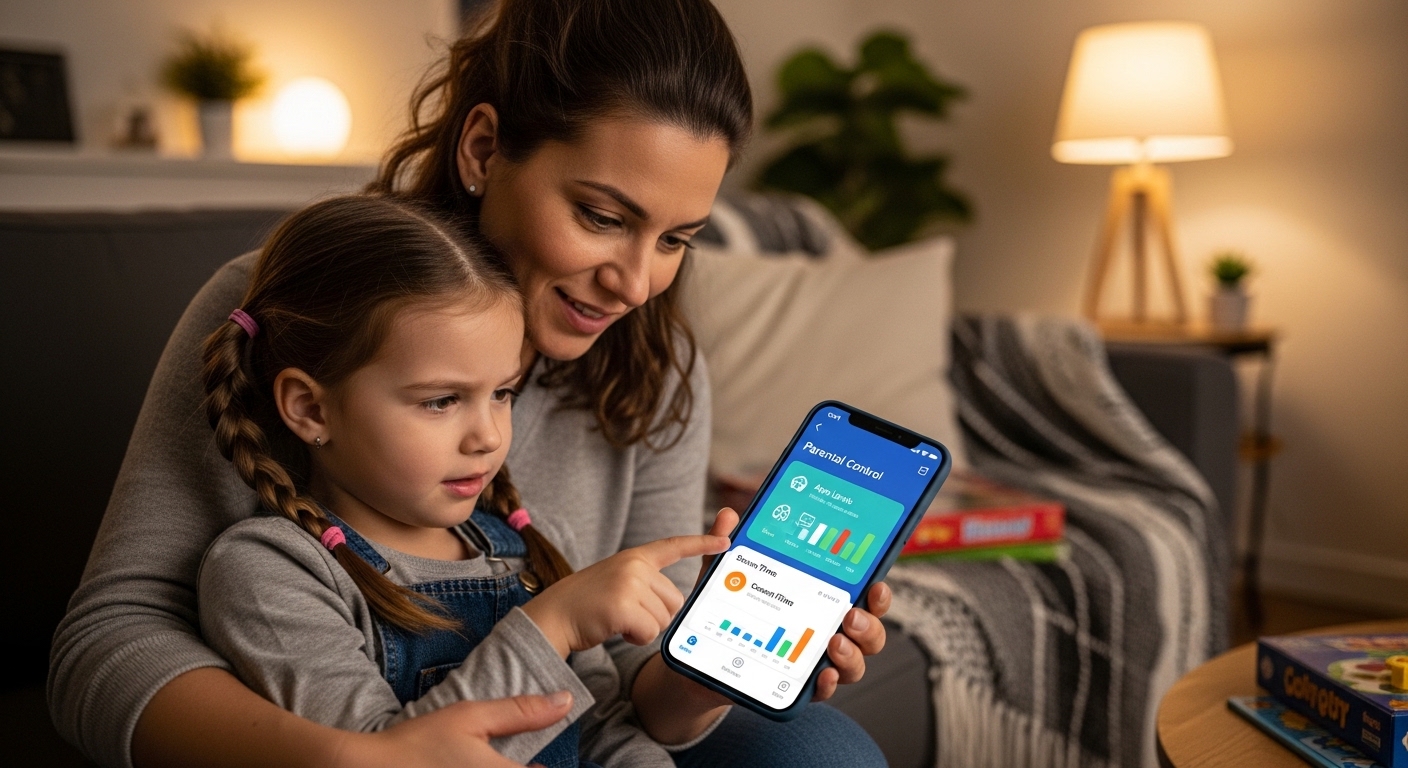
Looking for the best parental control apps? Parental control apps let you monitor your child’s phone activity, block inappropriate content, and track their location in real time.
The right app depends on your child’s age, their device, and how much control you need.
This guide reviews the top parental control apps available today for both iPhone and Android, compares their features side by side, and helps you choose the best option for your family.
Parental control apps are for protecting minors only. Installing monitoring software on an adult’s phone without consent is illegal under federal and state law.
What Are the Best Parental Control Apps Available?
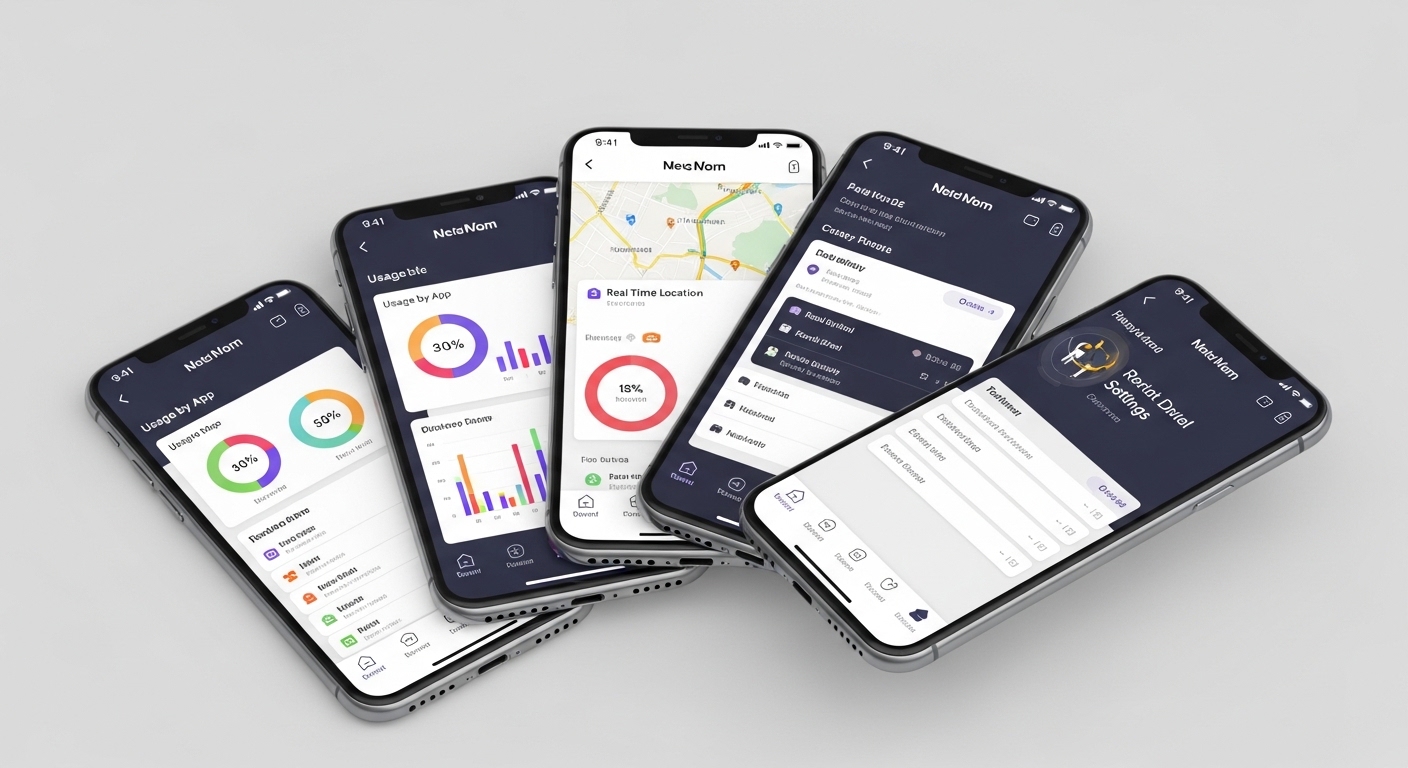
The parental control app market ranges from free built-in tools to premium monitoring suites. Each app has different strengths depending on what you need to monitor and which devices your family uses.
| App | Price | Platforms | Best For | Key Feature |
|---|---|---|---|---|
| Hoverwatch | $24.95/mo | Android | Comprehensive monitoring | Stealth mode + call recording |
| Bark | $14/mo | iOS, Android | Social media alerts | AI content monitoring across 30+ apps |
| Qustodio | $54.95/yr | iOS, Android | Screen time + web filtering | Detailed activity reports |
| Google Family Link | Free | Android | Basic Android controls | App management + location |
| Apple Screen Time | Free | iOS | Basic iPhone controls | App limits + content restrictions |
| mSpy | $27.99/mo | iOS, Android | Advanced monitoring | Keylogger + social media tracking |
| Net Nanny | $39.99/yr | iOS, Android | Web content filtering | Real-time internet filter |
Free options work well for basic needs — screen time limits and app blocking. Paid apps add location tracking, message monitoring, social media oversight, and detailed activity reports that free tools cannot provide.
“The best parental control app is the one your child can’t easily disable. Free built-in tools are a good start, but tech-savvy teens bypass them in minutes.
Dedicated apps like Hoverwatch operate at a deeper level that’s much harder to circumvent.”
Alex Rivera, CEH, OSCP
How Does Hoverwatch Compare to Other Monitoring Apps?
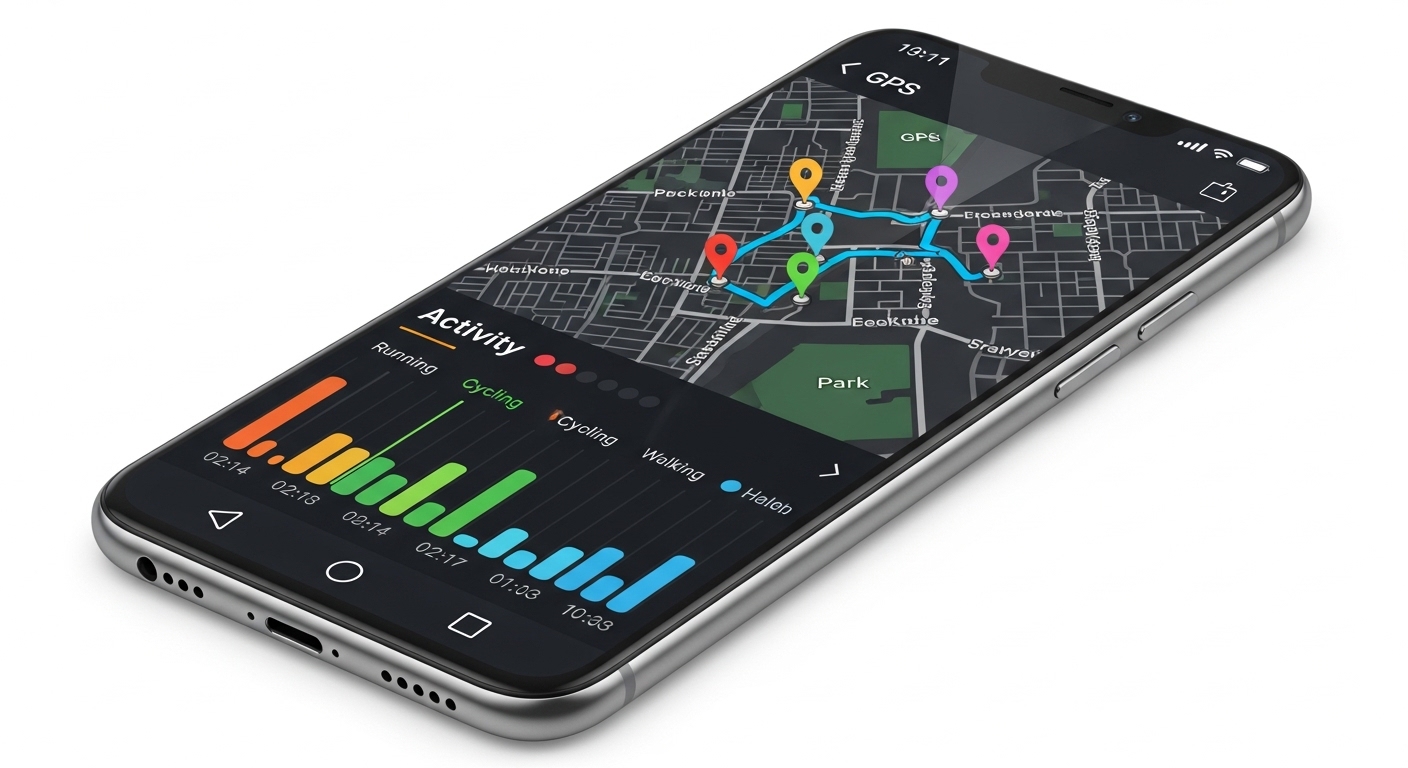
Hoverwatch is a comprehensive monitoring solution designed specifically for parental oversight. It operates in stealth mode, meaning it runs invisibly on the child’s device without an app icon or notifications.
Hoverwatch currently supports Android devices only. For families with iPhones, alternatives like Bark or mSpy provide cross-platform monitoring, though with different feature sets.
Hoverwatch offers a free trial — set it up on your child’s Android phone and review the dashboard for 3 days before committing.
Hoverwatch shows you the actual content — the messages sent, websites visited, and photos taken.
Which Free Parental Control Options Actually Work?
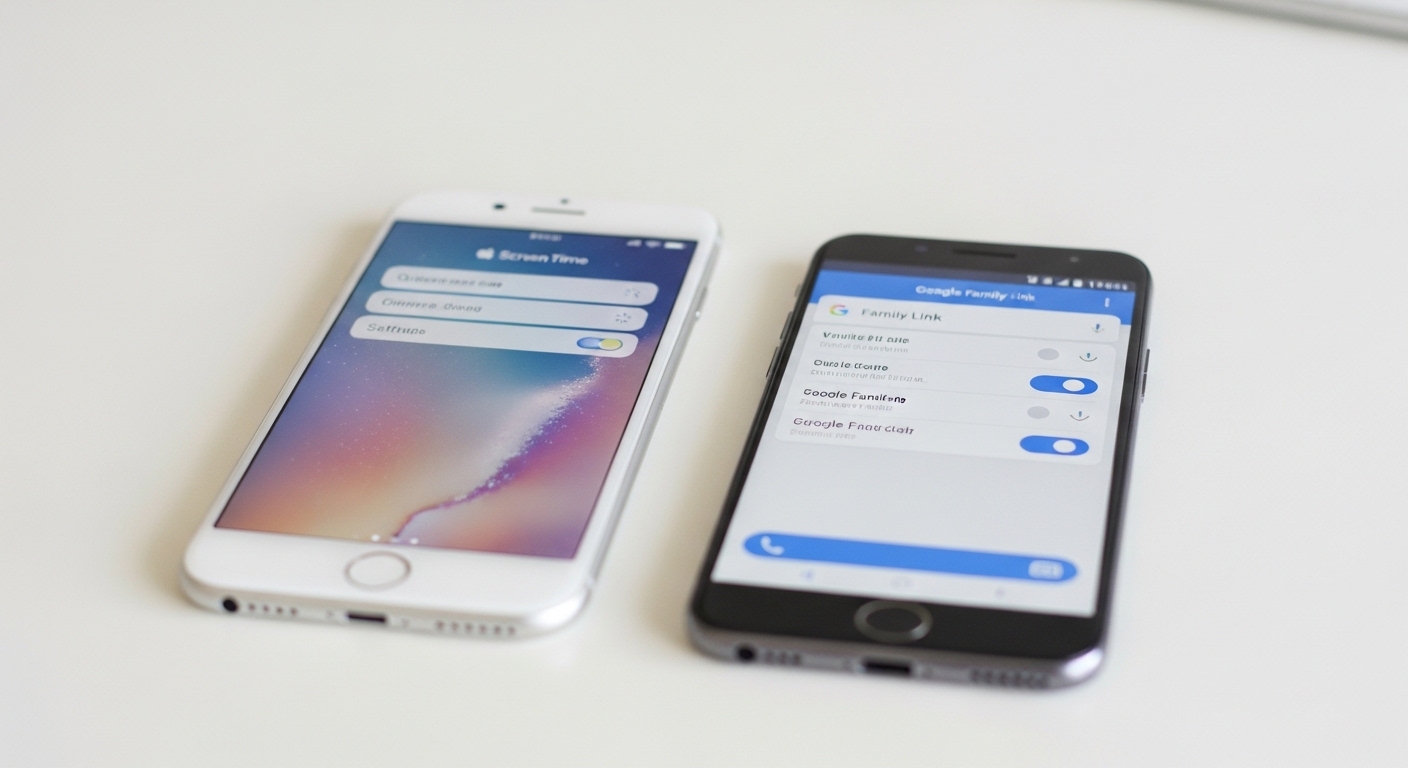
Both Apple and Google offer built-in parental controls at no cost. These tools handle the basics well but lack advanced monitoring features like message content and social media tracking.
| Feature | Google Family Link | Apple Screen Time |
|---|---|---|
| Screen time limits | Per-app limits | Per-category limits |
| App blocking | Approve/block installs | Age-based restrictions |
| Web filtering | SafeSearch only | Content restrictions in Safari |
| Location tracking | Real-time via Google Maps | Via Find My / Family Sharing |
| Message monitoring | No | No |
| Social media monitoring | No | No |
| Call log access | No | No |
| Stealth mode | No — child sees it | No — child sees it |
Pew Research: 72% of parents monitor children under 13, but only 38% monitor teens 13-17 — the age when online risks actually increase.
What Should You Look for in a Parental Control App?

Choosing the right parental control app depends on your specific monitoring needs, your child’s device, and your budget. Not every family needs the most expensive option.
Read reviews from other parents, not just tech sites. A feature-rich app that’s difficult to set up or produces too many false alerts becomes a burden rather than a tool.
The best parental control apps balance comprehensive monitoring with ease of use.
How Do You Set Up Parental Controls on Android?
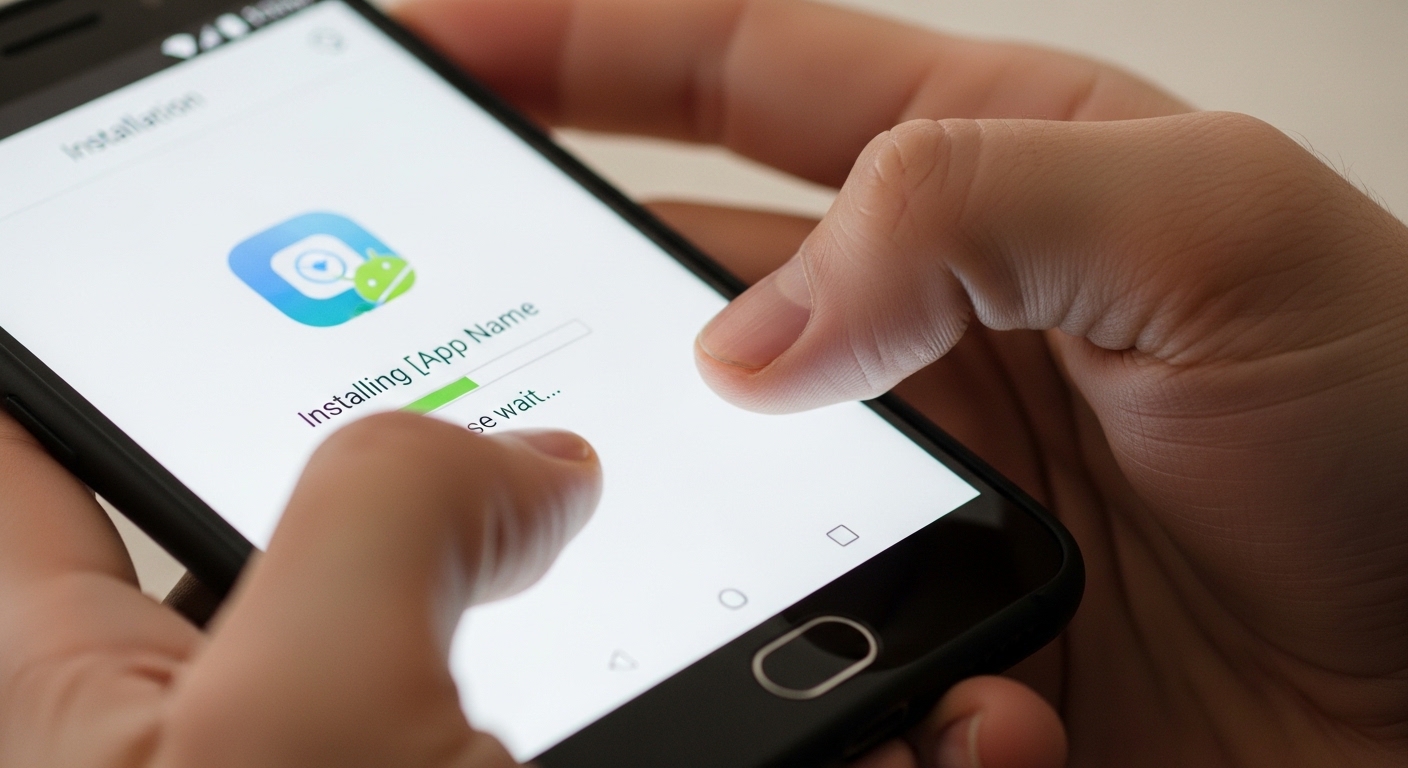
Setting up parental controls on Android takes about 10 minutes using Google Family Link. For more advanced monitoring, third-party apps like Hoverwatch require an additional 5 minutes of setup.
Always inform your child that monitoring software is on their phone. Secret monitoring damages trust and may not be legal for children over a certain age in some jurisdictions.
How Do You Set Up Parental Controls on iPhone?
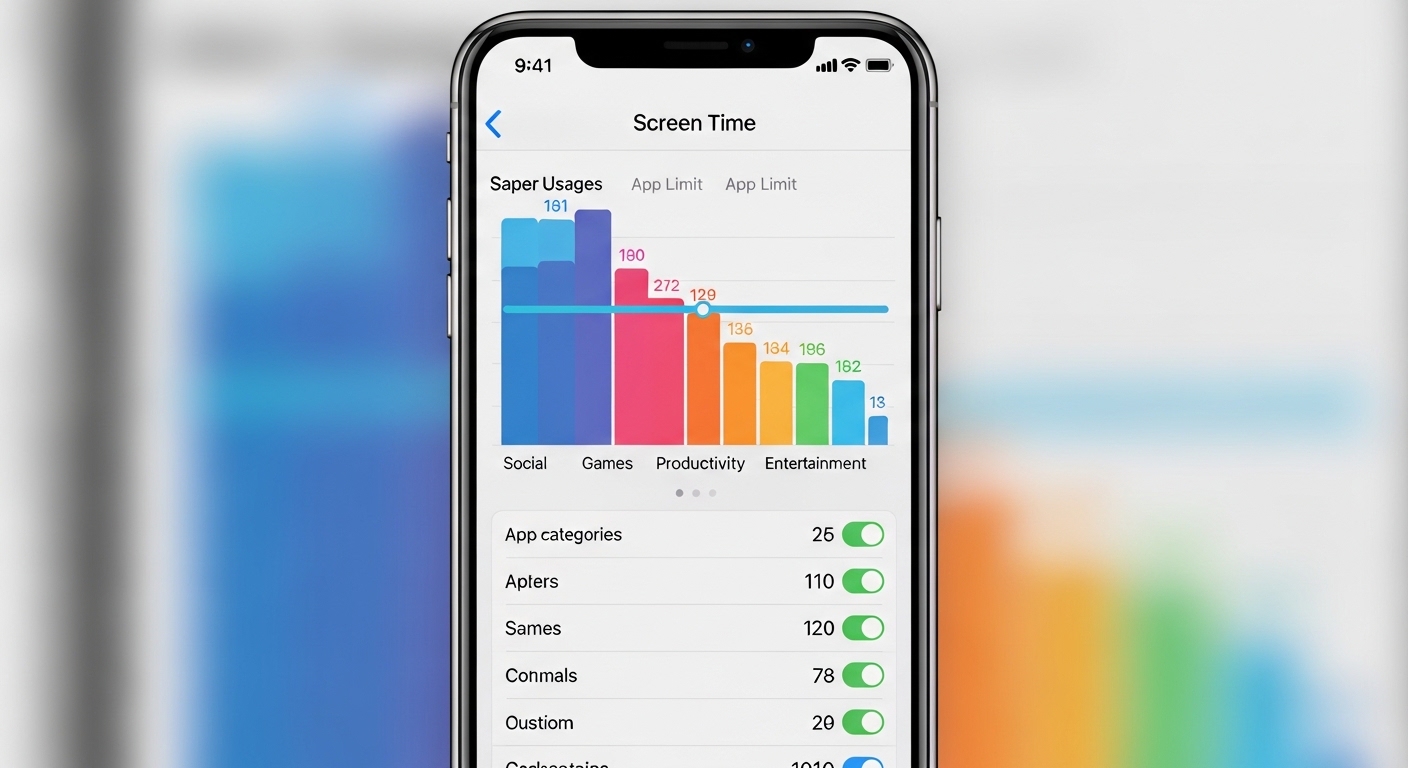
Apple’s built-in Screen Time provides solid parental controls for iPhone. Third-party apps add social media monitoring and advanced features that Screen Time lacks.
For deeper monitoring on iPhone, apps like Bark connect to your child’s iCloud account and social media profiles to scan for concerning content.
Bark monitors over 30 platforms including TikTok, Snapchat, Instagram, and YouTube.
Apple’s Communication Safety feature (iOS 17+) automatically detects and blurs nude photos in Messages before children see them. Enable it in Settings → Screen Time → Communication Safety.
How Can You Balance Monitoring with Your Child’s Privacy?

Effective parental monitoring requires balancing safety with age-appropriate privacy. Too much surveillance damages trust. Too little leaves children vulnerable to online threats they can’t handle alone.
“The parents who get the best results are the ones who use monitoring as a conversation starter, not a gotcha tool.
When your child knows you can see their activity and you discuss concerns calmly, they make better choices on their own.”
Dr. Sarah Chen, Child Psychology Researcher
Set a family rule: review monitoring reports together once a week. This turns surveillance into a teaching moment and shows your child you respect them enough to be transparent.
The best monitoring strategy evolves as your child grows.
Final Thoughts
Start with free tools — Google Family Link or Apple Screen Time — and add a paid app if you need deeper monitoring.
For Android families, Hoverwatch provides the most comprehensive oversight. For iPhone families, Bark adds the social media monitoring that Apple’s tools lack.
Whatever parental control apps you choose, be transparent with your child about monitoring. Parental control apps work best as a safety net, not a secret surveillance system.
Frequently Asked Questions
Google Family Link (Android) and Apple Screen Time (iPhone) are the best free options. Both offer screen time limits, app management, content filtering, and location tracking at no cost. They lack message monitoring and social media scanning, but for children under 13 who need basic controls, they're an excellent starting point. You can always add a paid app later if you need more features.
Free tools like Family Link and Screen Time are protected by a parent passcode but tech-savvy teens can sometimes find workarounds. Paid apps like Hoverwatch are significantly harder to remove — they operate in stealth mode without a visible app icon and require a special code to uninstall. No app is completely tamper-proof, but dedicated monitoring apps are far more resistant than free built-in tools.
Some do, some don't. Bark, Qustodio, mSpy, and Net Nanny work on both platforms. Hoverwatch is Android-only. Google Family Link is Android-only. Apple Screen Time is iPhone-only. If your family has a mix of devices, choose a cross-platform app like Bark or Qustodio to manage everything from one dashboard.
There's no universal age — it depends on your child's maturity and the trust they've earned. Most experts recommend full monitoring until age 13, alert-based monitoring from 13-16, and minimal monitoring from 16-18. By 18, your child is a legal adult and monitoring without consent becomes illegal. The transition should be gradual, with increasing privacy as your child demonstrates responsible behavior.
Yes, parents can legally monitor minor children's devices in all 50 US states. However, child psychologists strongly recommend transparency — tell your teen that monitoring exists. Secret surveillance damages trust and can backfire when discovered. Some two-party consent states may have gray areas around recording a teenager's conversations with other adults. When in doubt, be open about it.