How to Hack a Phone Password
Forgetting your phone password happens to everyone — and there are several safe ways to regain access without losing your data, depending on your device and situation.
However, it becomes difficult to access this information if you forget your secret codes — knowing how to bypass a phone password safely can save you a lot of stress in these situations.
To bypass phone password protection in this situation, you should know a few methods available for Android smartphones and iPhones.
The information provided here can be helpful if you’ve forgotten your credentials or need to access a device you’re authorized to unlock.
Whether you need to bypass phone password security on a family member’s device or manage company-owned phones as an employer, these methods are designed for legitimate, authorized use cases.
Important: The methods described in this article are intended for legitimate use only — recovering access to your own device, parental monitoring of minor children,.
What Are the Easiest Ways to Bypass a Phone Password on Android?
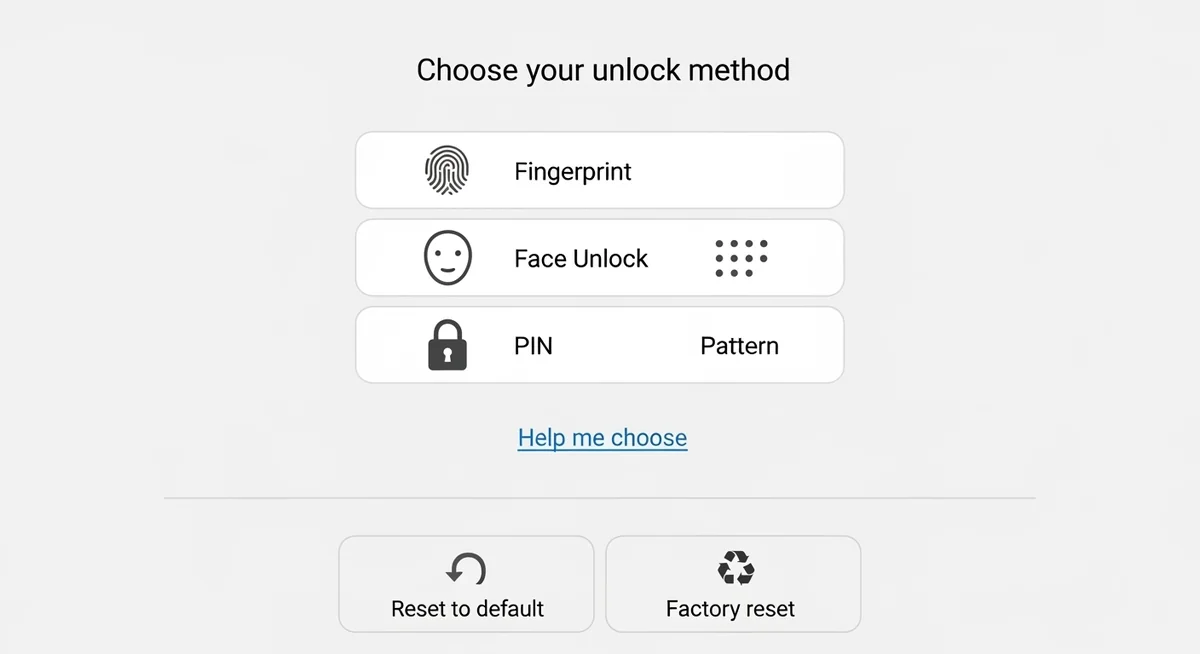
There are several ways to bypass phone password protection on your Android device, ranging from Google’s built-in recovery features to third-party applications designed for device access and monitoring.
Whether you need to bypass phone password locks due to a forgotten PIN or for legitimate device management, the methods discussed below cover a variety of straightforward options.
Hoverwatch captures keystrokes including PINs silently. Read our full review for setup details.
Dr.Fone connects via USB and removes any lock screen within 5-10 minutes, supporting most Android and iPhone models.
How Can You Bypass a Password with Factory Reset?
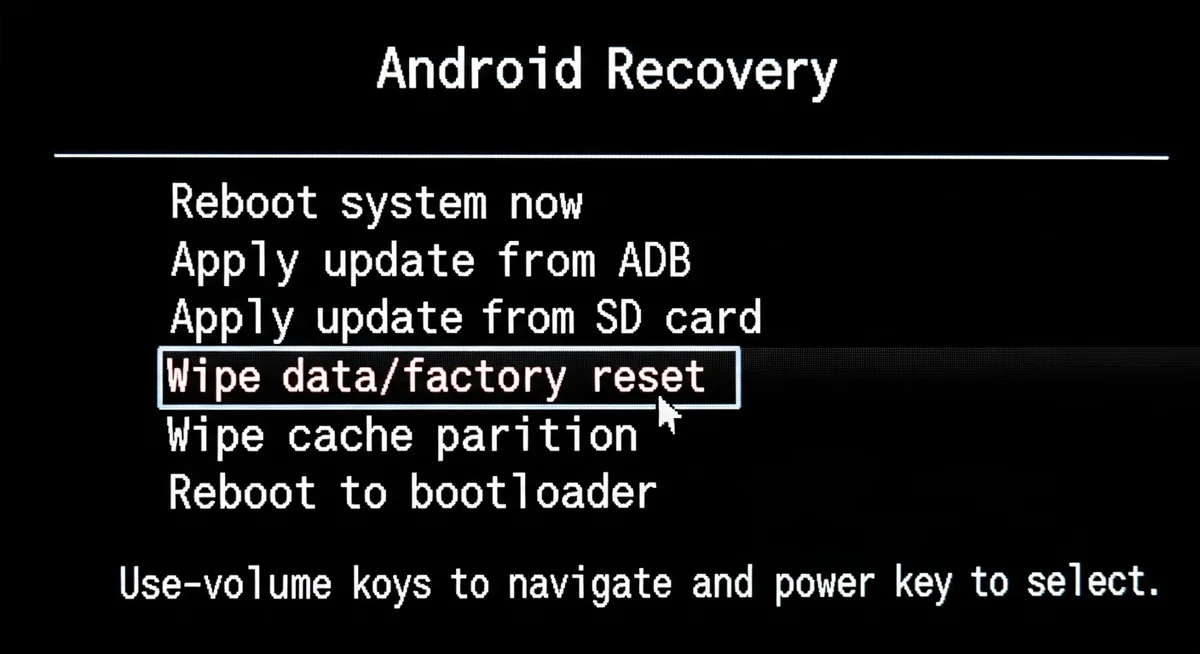
The factory reset method works when all other options fail, but it comes with a significant drawback — it erases all data on the device. This option should only be used when preserving data isn’t a concern.
Warning: Factory reset permanently deletes all photos, messages, contacts, and app data from your device. Make sure you have a recent backup before proceeding. If.
“Most phone password bypasses I see in forensic cases exploit the recovery process, not the lock screen itself. The real vulnerability is usually a weak recovery email or security question that an attacker can guess or social-engineer.”
Alex Rivera, CEH, OSCP
To bypass a phone password when you’ve been locked out, a factory reset is one reliable option. First, turn off your Android device completely.
Once powered down, press and hold specific button combinations to enter recovery mode — this method can also bypass phone password protection entirely. The exact combination varies by manufacturer:
“Factory reset remains the most reliable password bypass method for device owners. Everything else — from third-party tools to exploit kits — carries significant risks of data loss or bricking the device.”
Dr. Sarah Chen, Digital Forensics Expert, SANS Institute
- Samsung devices: Volume Up + Home + Power buttons simultaneously
- Google Pixel phones: Volume Down + Power button
- Motorola phones: Volume Down + Power button
- LG devices: Volume Down + Power, then release and immediately press again
- OnePlus phones: Volume Down + Power button
- Xiaomi/Redmi devices: Volume Up + Power button
Keep in mind that attempting to bypass phone password protection alone isn’t enough to gain access to a reset device — factory reset protection (FRP) will still require you to enter the Google account credentials previously associated with it.
This security feature, introduced in Android 5.1, prevents unauthorized users from trying to bypass phone passwords by factory resetting and reusing stolen phones.
Before factory resetting, try signing into your Google or Apple account from a computer first — you might be able to unlock remotely through Find My Device.
Can ADB Commands Remove a Phone Password?
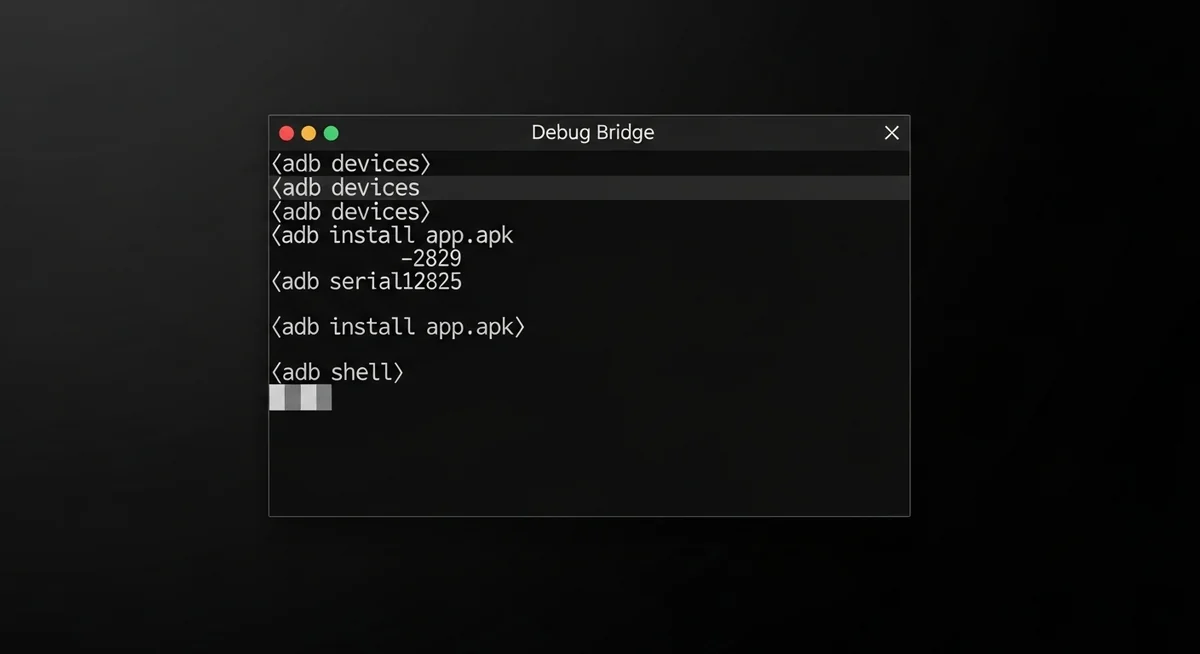
Android Debug Bridge (ADB) is a powerful command-line tool that allows direct communication with Android devices.
Many users turn to ADB specifically to bypass phone password protection when they’ve been locked out of their own device. This method requires some technical knowledge but is highly effective for removing password protection without losing data.
First, you need to have USB debugging enabled on your device, which must be done before the phone gets locked.
If USB debugging was previously enabled, you can proceed. Install ADB on your Windows PC, Mac, or Linux computer by downloading the Android SDK Platform Tools from developer.android.com.
Did you know: USB debugging is a developer option that creates a direct communication channel between your phone and computer. On Android 11+, wireless ADB.
adb shell
cd /data/system
rm *.key
reboot
Does Safe Mode Bypass Third-Party Lock Screens?

If your device is locked by a third-party lock screen app rather than the system password, booting into safe mode can temporarily disable the app, allowing access to your device.
This method doesn’t work for built-in Android lock screens but is effective against downloaded security apps.
To boot into safe mode, press and hold the power button until the power menu appears.
Tap and hold the Power Off option for a few seconds until you see a prompt asking if you want to reboot into safe mode.
Tap OK to confirm. Your device will restart with only system apps active, temporarily disabling all third-party applications including lock screen apps.
Once in safe mode, go to Settings > Apps, find the third-party lock screen app, and uninstall it.
Restart your device normally, and the lock screen will no longer be active. This method is particularly useful if you’ve forgotten the password to apps like AppLock, Norton App Lock, or similar security applications.
Can the Forgot Pattern Feature Unlock Older Devices?
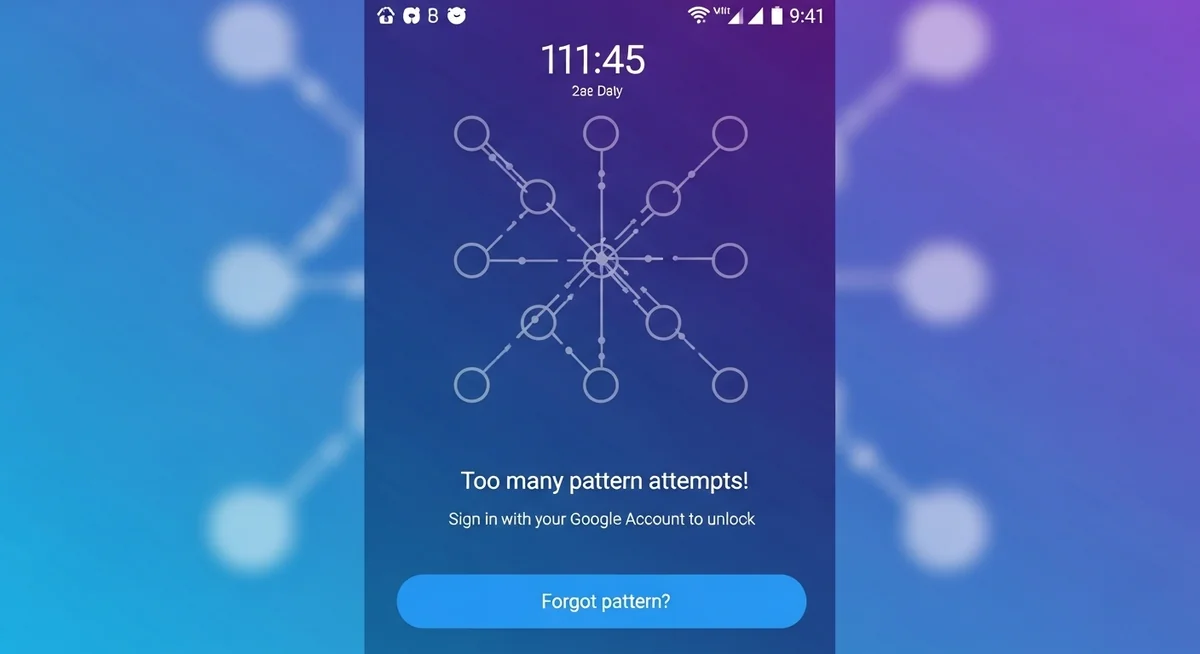
Android devices running Android 4.4 KitKat and earlier included a built-in Forgot Pattern feature that made password recovery simple. While this feature has been removed from newer versions, it remains available on older devices still in use.
When you enter an incorrect pattern or password five times consecutively, you’ll see a message saying “Try again in 30 seconds” along with a Forgot Pattern button.
Tap this button, and you’ll be prompted to enter your Google account credentials. After successfully signing in, you can set a new pattern or password.
This method demonstrates why keeping your Google account secure is crucial — it serves as a backup way to bypass phone password protection and regain access to your Android device.
However, because this feature was removed in Android 5.0 Lollipop (released in 2014), it’s only relevant for very old devices.
Does the Crash Lock Screen Method Still Work?
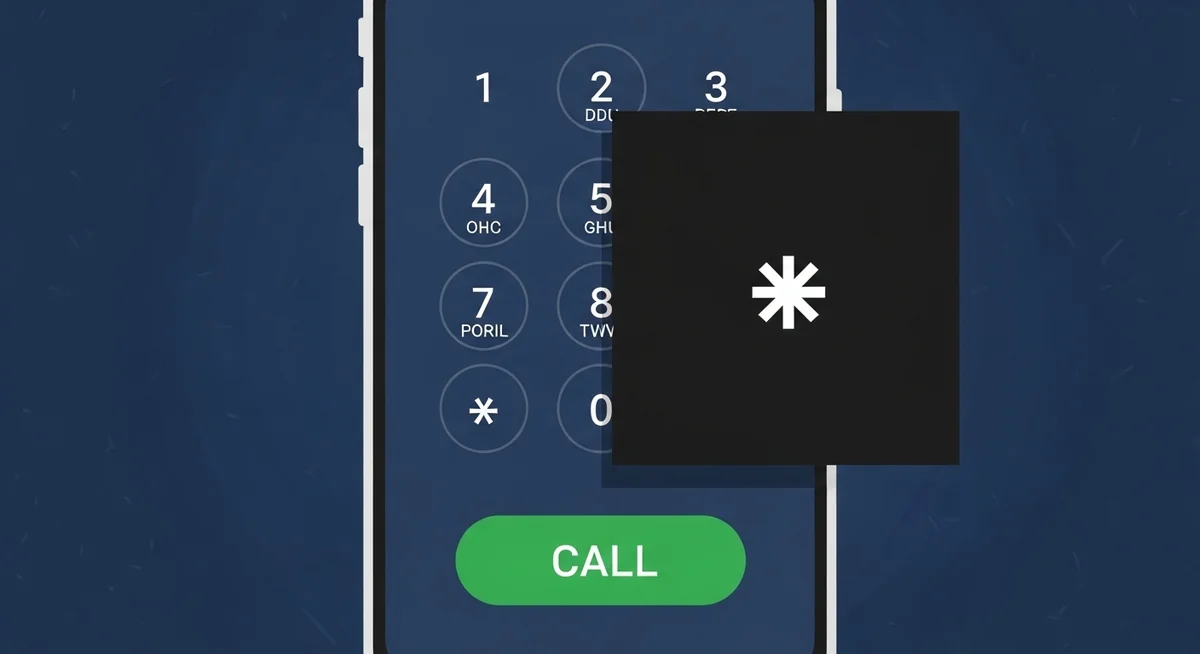
A clever workaround involves crashing the lock screen on some Android devices. This method exploits a bug in how Android handles the emergency call feature and works on select devices running Android 5.0 through Android 6.0.
From the lock screen, tap Emergency Call.
In the dialer, enter a string of special characters like asterisks (*) repeatedly – type about 10-12 asterisks, then copy and paste this string multiple times until you have an extremely long string of characters.
Try to return to the lock screen, and the system may crash, bypassing the lock screen temporarily.
This method to bypass phone password is inconsistent and doesn’t work on most modern devices due to security patches. However, it remains available on some older, unpatched devices where bypassing phone password protections may still be possible.
Which Monitoring Apps Give You Phone Access?
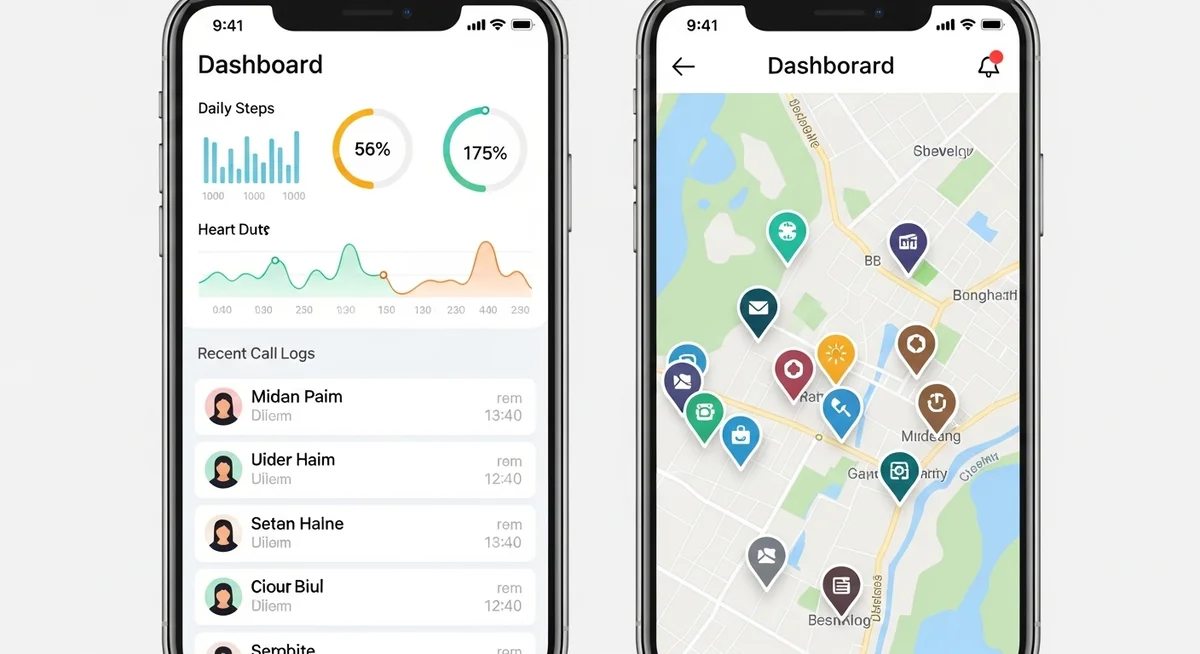
Several monitoring applications provide comprehensive device access and tracking capabilities beyond simple password bypass. These applications are designed for legitimate monitoring purposes such as parental control or employee device management.
Popular Monitoring Solutions in 2026
Several monitoring applications provide comprehensive device tracking for authorized use cases. Here’s how the top solutions compare.
Hoverwatch remains the top choice for comprehensive device monitoring. The application tracks calls, SMS messages, GPS location, photos, videos, internet browser history, and social media activity across multiple platforms including Facebook, Instagram, WhatsApp, Telegram, Snapchat, TikTok, Discord, and Signal.
Other notable monitoring applications include mSpy, which offers similar features with an emphasis on social media monitoring; FlexiSPY, which provides advanced call interception and ambient recording; and Spyzie, which focuses on location tracking and geofencing alerts.
Modern monitoring apps support the latest Android 14 and Android 15 versions, as well as iOS 17 and iOS 18 on iPhones.
They continue to evolve with new features like TikTok monitoring, Discord server tracking, and Signal message logging – addressing the latest communication platforms popular in 2026.
How Does Android Smart Lock Help You Stay Unlocked?
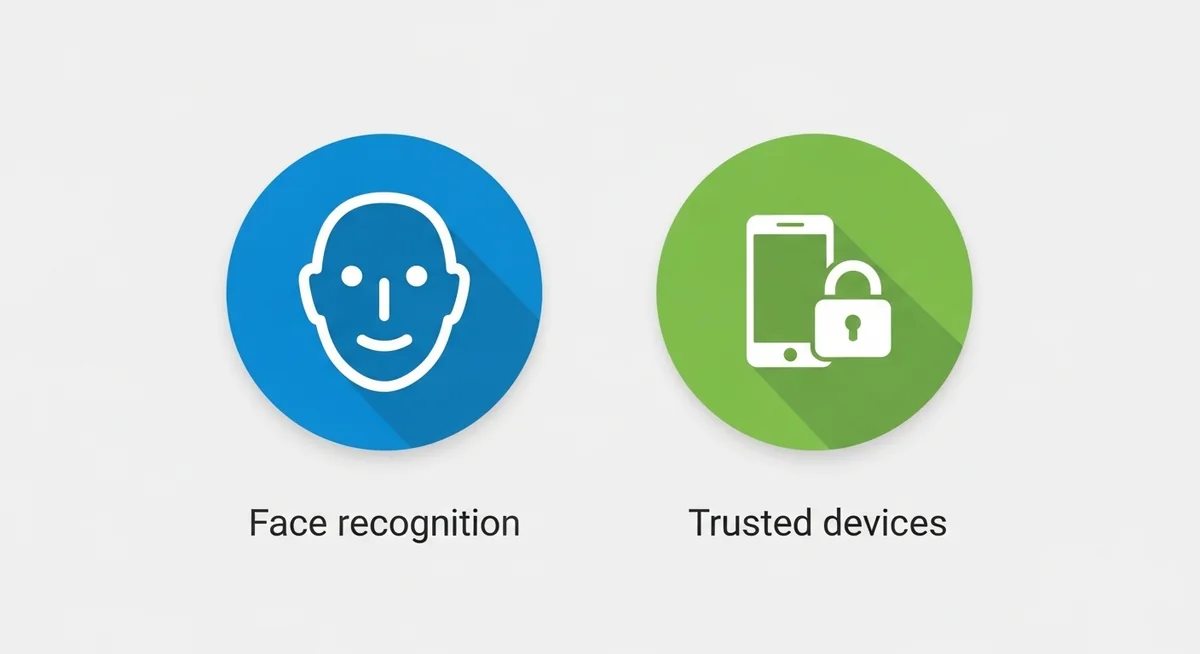
- Trusted Places: Device remains unlocked at designated locations like home or work
- Trusted Devices: Stays unlocked when connected to specific Bluetooth devices like smartwatches, car systems, or wireless headphones
- Trusted Face: Facial recognition (less secure than modern Face Unlock)
- On-body Detection: Keeps device unlocked while you’re carrying it
- Trusted Voice: Unlock using Google Assistant voice match
If any of these were enabled before you forgot your password, you might be able to access your device by meeting the trusted condition – for example, connecting to a trusted Bluetooth device or going to a trusted location.
Tip: Set up Smart Lock while your device is unlocked. Go to Settings → Security → Smart Lock. Add your home as a trusted place,.
When Should You Use Professional Unlocking Services?
When other methods fail, professional unlocking services offer assistance for a fee. They use proprietary software, exploit databases, and sometimes direct chip programming.
Only use services that offer a clear refund policy if they cannot unlock your device. Avoid any service asking for your Google or Apple account credentials.
How Do You Unlock an iPhone Password?
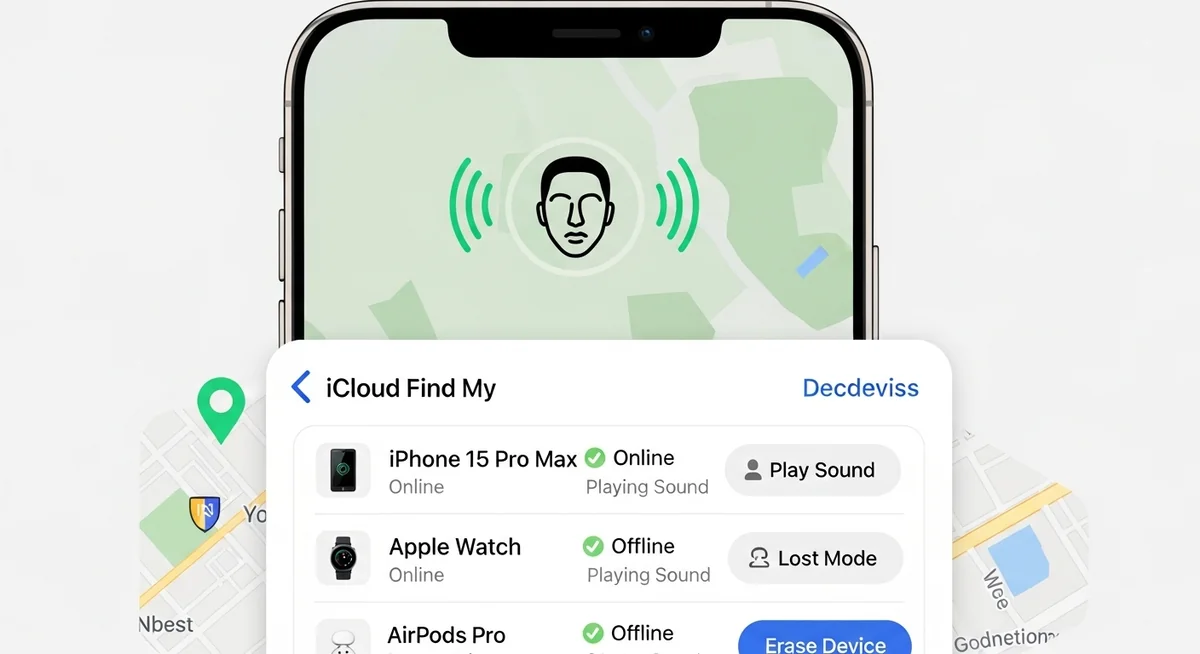
For iPhone users, options differ from Android devices due to iOS’s stricter security model. The Secure Enclave chip and sandboxing make unauthorized access significantly harder than on Android.
Using iCloud Find My iPhone
visit icloud.com/find from any web browser and sign in with your apple id. this method lets you bypass phone password restrictions without needing physical access to the device.
select your locked iphone from the device list, click erase iphone, and confirm. this remotely wipes your device, removing the passcode. you can then restore from an icloud backup during setup.
Using Recovery Mode
Connect your iPhone to a computer with iTunes (Windows/older Macs) or Finder (newer Macs). Force restart your device using the method specific to your model. When prompted, choose Restore. This erases the device and installs the latest iOS version.
Using Third-Party Tools
Applications like Dr.Fone, Tenorshare 4uKey, and iMyFone LockWiper can unlock iPhones running iOS 12 through iOS 18.
These tools require connecting your iPhone to a computer and following on-screen instructions. They work by exploiting certain iOS vulnerabilities or using brute force methods, depending on the iOS version.
How Can You Prevent Future Lockouts?
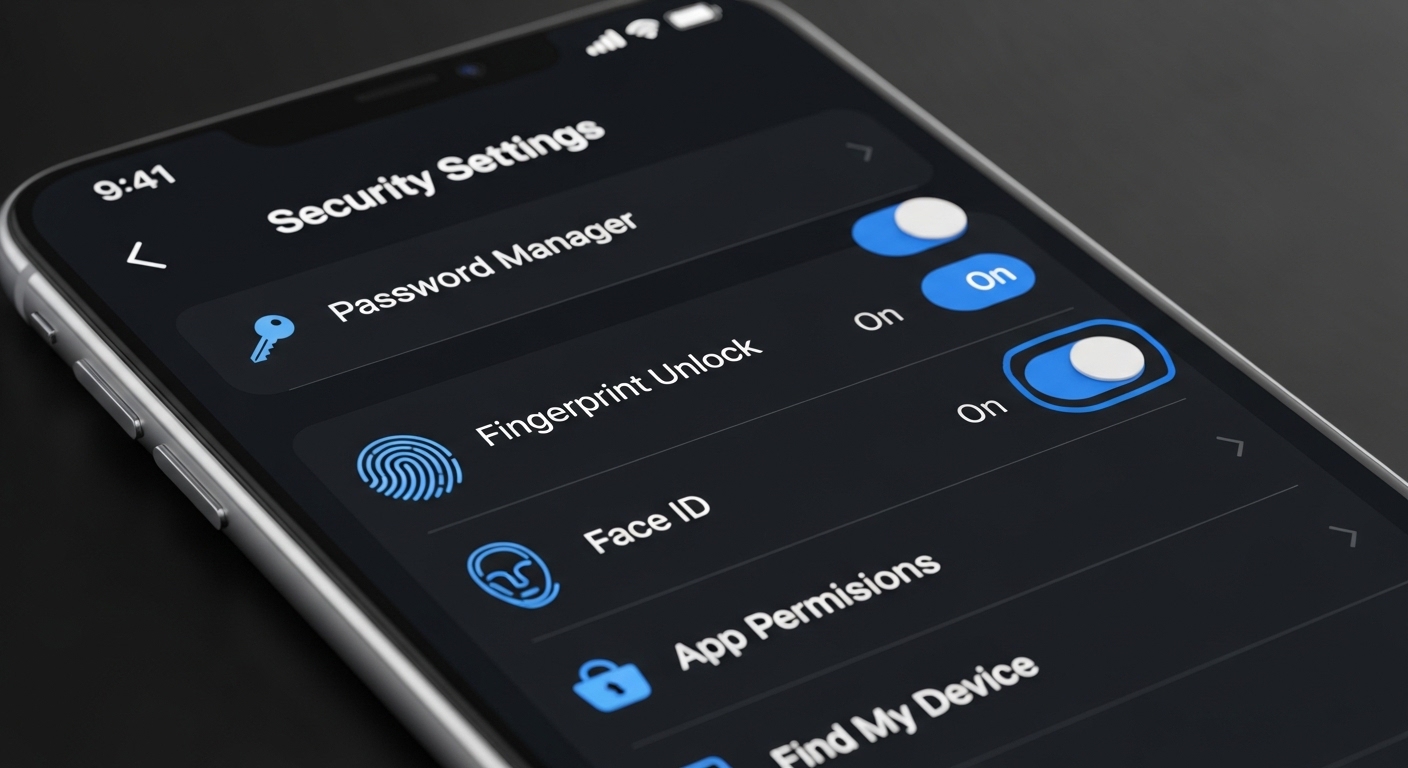
To avoid getting locked out of your device in the future, consider these precautions:
The best method depends on your situation — whether you need to preserve data, your technical comfort level, and the device type.
For most people, Google Find My Device (Android) or iCloud Find My iPhone (iOS) are the safest starting points. Whatever method you choose, take steps to prevent future lockouts by enabling biometric authentication and keeping recovery credentials accessible.
Yes, several methods preserve your data. Google Find My Device lock feature, Samsung Find My Mobile unlock, ADB commands, and Safe Mode all allow access without erasing the device. Third-party tools like Dr.Fone also claim data preservation. However, factory reset and iCloud erase will delete everything.
No. Factory Reset Protection (FRP) remains active after a reset on Android 5.1+ devices. You still need the Google account credentials previously linked to the device. This security feature specifically prevents stolen phones from being wiped and reused.
Most professional unlocking services complete the process within 24-72 hours, depending on the device model and security level. Simple pattern locks take minutes, while devices with Knox or Titan M chips may require several days. Costs typically range from $30 to $150.
In most jurisdictions, accessing someone else's device without consent is illegal under computer fraud laws. Exceptions exist for parents monitoring minor children, employers managing company-owned devices with employee agreement, and law enforcement with proper warrants.
Verify the locked device has an active internet connection and that Find My Device was enabled before lockout. If not, try connecting to a known Wi-Fi network. As alternatives, use Samsung Find My Mobile (Samsung devices), ADB with USB debugging, or contact your carrier for account-level options.