How to Screenshot on Snapchat Without Them Knowing
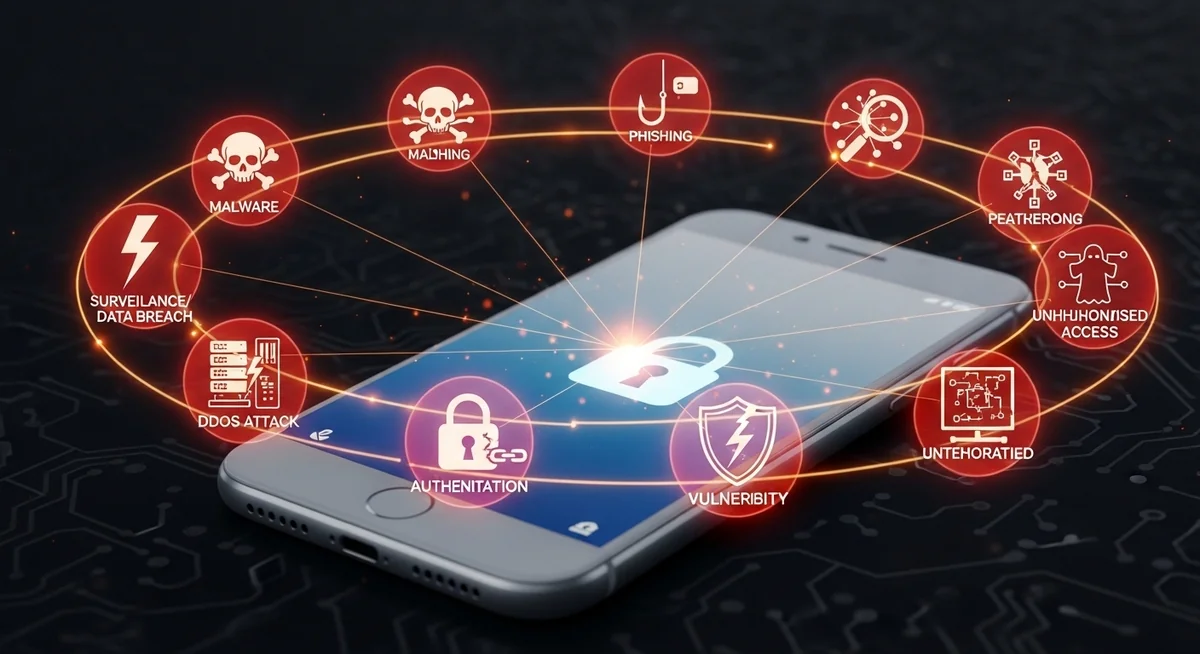
Your thumb hovers over the power button, ready to screenshot that Snapchat snap. But you know the moment you do, they’ll get notified. Here’s how to actually content without triggering that dreaded alert. Understanding screenshot snapchat is essential for your digital security.
Someone just sent you a snap — maybe it’s a recipe you’ll forget in ten seconds, an address you need for later, or a conversation that might matter down the road. Your thumb hovers over the power and volume buttons, ready to screenshot Snapchat, not knowing whether it’ll trigger a notification. Then it hits you: Snapchat tells them. That little notification pops up, and suddenly you’re the person who screenshotted a casual snap. Awkward doesn’t even cover it.
This guide is for educational purposes only. Circumventing screenshot detection may violate Snapchat’s Terms of Service. Capturing and distributing someone’s content without consent may violate privacy laws in your jurisdiction. Use this information responsibly.
What Snapchat Actually Detects (and What It Misses)
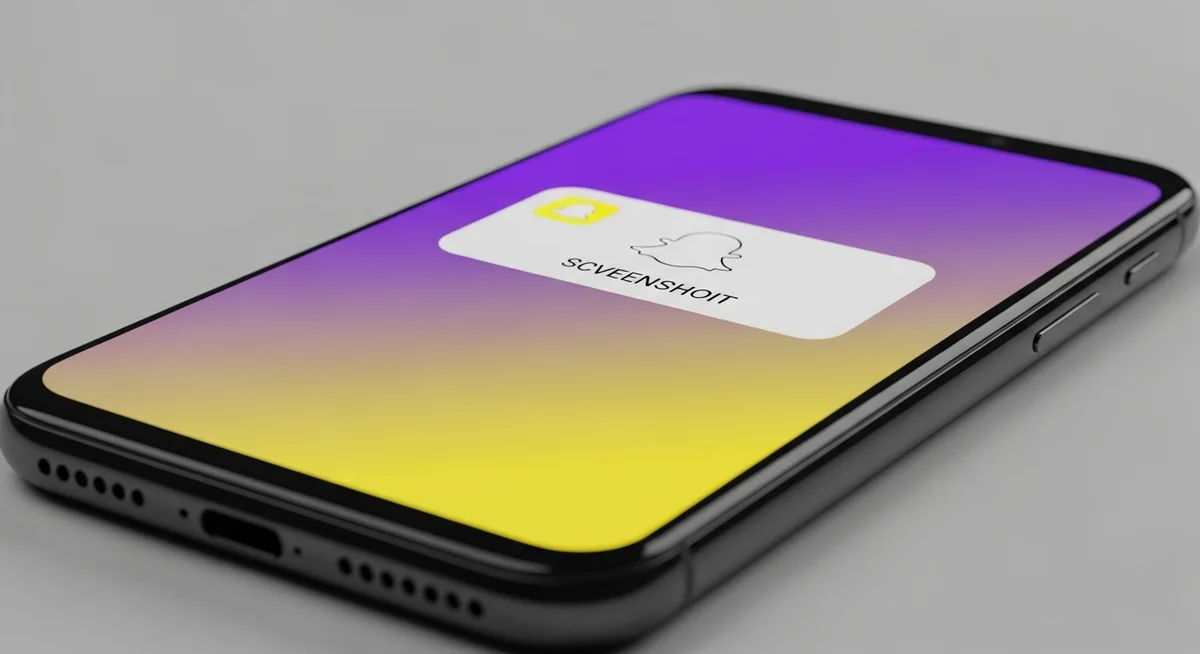
Before you try to screenshot Snapchat without getting caught, you need to understand the risks, you need to understand what you’re actually up against. Snapchat’s screenshot detection isn’t some basic check — it hooks into OS-level APIs on both iOS and Android to catch screen captures as they happen.
Here’s what triggers a Snapchat notification every time you attempt to screenshot Snapchat:
| Action | Detected? | Notification Sent? |
|---|---|---|
| Native screenshot (power + volume) | Yes | Yes — instantly |
| Built-in screen recording (iOS/Android) | Yes | Yes — when recording starts |
| Third-party capture apps | Most detected | Yes, or app is blocked |
| Screenshot of someone’s profile page | No | No |
| Screen mirroring capture | No (currently) | No |
| Photographing screen with another device | No (impossible to detect) | No |
Snapchat recently expanded Android screenshot detection to match iOS. Split-screen mode, Google Assistant, and file manager loopholes are all closed now.
Stories, chats, snaps, DMs — trying to screenshot Snapchat in any of those areas triggers an instant alert. Does Snapchat notify when you screenshot a story? Absolutely. Your name shows up in their viewer list with a little screenshot icon right next to it. Not subtle at all.
Airplane Mode: Screenshot Snapchat Without Triggering Detection (iPhone & Android)
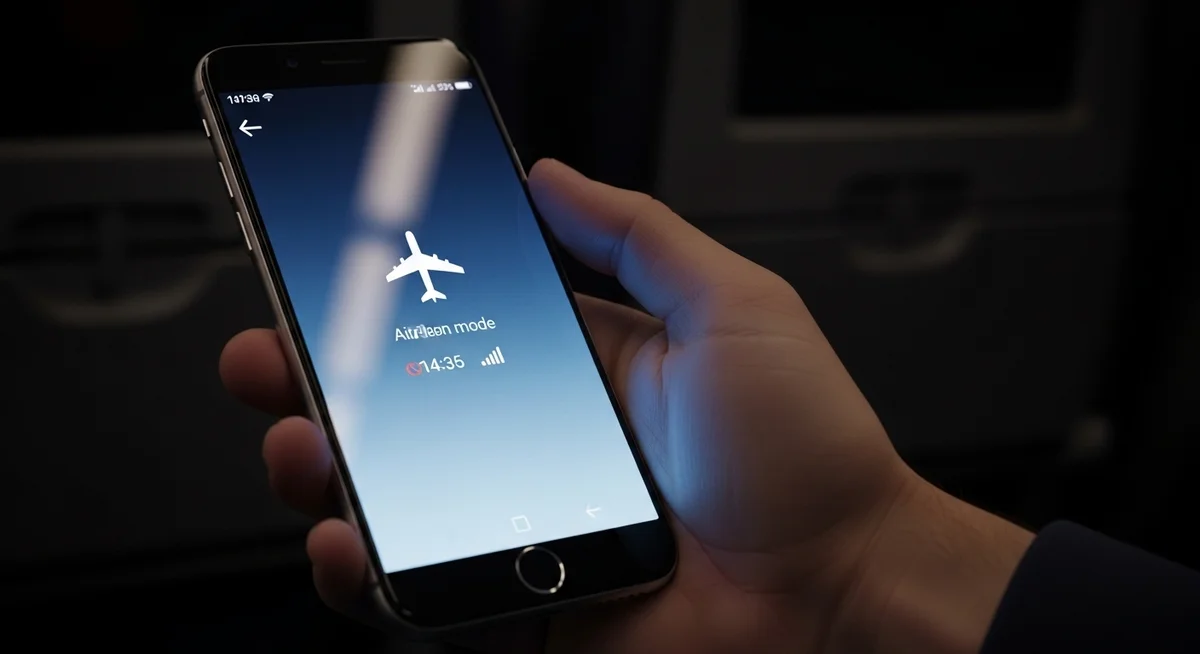
This is the method everyone searches for, and honestly, I have mixed feelings about recommending it today. It used to be the gold standard — dead simple, no extra tools needed, works on any phone. But Snapchat has been quietly chipping away at it. Let me walk you through exactly how it works, and more importantly, when it doesn’t.
I tested this across four phones — iPhone 15 Pro, iPhone 12, Pixel 8, and Samsung Galaxy S24. The results were inconsistent, which is why the steps differ by device.
iPhone Step-by-Step
- Open Snapchat and load the snap or story you want to capture. Let it fully load.
- Enable Airplane Mode — swipe down from top-right, tap the airplane icon. Wait 3 seconds.
- Take the screenshot using Power + Volume Up buttons.
- Clear Snapchat cache — go to Settings > Apps > Snapchat > Clear Cache.
- Force close Snapchat — swipe up from home to close the app completely.
- Disable Airplane Mode and reopen Snapchat normally.
Android Step-by-Step
Screen Mirroring: The Most Reliable Method Today
If you want a reliable way to screenshot Snapchat consistently, screen mirroring is it. The concept is simple — mirror your phone’s display to a computer or TV, then take a screenshot on the receiving device. Snapchat monitors your phone’s screenshot API, but it has no visibility into what’s happening on the device displaying the mirrored output.
How to Set It Up (iPhone to Mac)
- Connect your iPhone and Mac to the same Wi-Fi network.
- Open QuickTime Player on your Mac and select File → New Movie Recording.
- Click the dropdown arrow next to the record button and select your iPhone as the camera source. Your phone’s screen will appear on your Mac.
- Open the snap on your phone and take a screenshot on your Mac using Command + Shift + 4. You can also use Command + Shift + 3 for a full-screen capture.
How to Set It Up (Android to PC)
- Install scrcpy (free, open-source) on your PC, or use the built-in screen mirroring in Windows 11 via the Wireless Display feature.
- Connect your Android phone via USB or wirelessly over the same network.
- Open the snap on your phone and press Print Screen or use the Snipping Tool on your PC to capture the mirrored display.
Screen mirroring produced zero Snapchat notifications in every test. The screenshot happens on the computer, not your phone — completely undetectable.
Using a Second Device to Photograph the Screen
This is the lowest-tech approach, and honestly, it’s the one method that Snapchat can never detect. You’re not interacting with the phone’s OS at all — you’re just pointing another camera at the screen.
- Open the snap on your phone as you normally would.
- Use a second phone, tablet, or camera to photograph or record the screen.
- For best quality, turn up your phone’s brightness to maximum, hold the second device parallel to the screen to avoid glare, and shoot in a dimly lit room.
The obvious downside is image quality — moiré patterns, reflections, and reduced sharpness. Fine for text-based snaps, noticeable for high-res photos. But this method is 100% undetectable — Snapchat can’t monitor external cameras.
Methods That No Longer Work
The internet is full of outdated screenshot Snapchat guides recommending methods that the app patched long ago. If you try any of these, you’ll either trigger a notification or get your account flagged. Here’s what no longer works:
What Happens If You Get Caught Screenshotting on Snapchat
Understanding the consequences is part of making an informed decision:
- Immediate notification: The sender sees a screenshot icon next to your name in the chat or story viewer list. There’s no way to retract this once it’s sent.
- Chat record: In direct message conversations, a line reading “[Your Name] took a screenshot!” appears permanently in the chat history.
- Account penalties: Using third-party apps or modified versions of Snapchat can trigger a temporary lock (12-24 hours) or a permanent ban if Snapchat detects repeated violations.
- Social fallout: Depending on the content and your relationship with the sender, getting caught can range from mildly embarrassing to genuinely damaging a friendship or relationship.
The Bottom Line: Which Method Should You Use?
After testing every screenshot Snapchat technique against the app’s latest major update, here’s where things stand:
| Method | Still Works? | Detection Risk | Quality | Convenience |
|---|---|---|---|---|
| Airplane Mode | Partially | Medium (20-30% failure rate) | Perfect | High |
| Screen Mirroring | Yes | None detected | Perfect | Low (needs computer) |
| Second Device Photo | Yes (always will) | None (undetectable) | Lower | Medium (needs second device) |
| Third-party Apps | No | High (ban risk) | N/A | N/A |
| Google Assistant | No | High | N/A | N/A |
Screen mirroring is the most reliable option for a if you have access to a computer. The second device method is foolproof but sacrifices image quality. Airplane Mode still works sometimes but is increasingly unreliable — use it only if you’re comfortable with the risk that it might not work.
Final Thoughts
The methods in this article work, but they exist in a gray area between convenience and respect for others’ privacy. If someone chose to send a disappearing message, they had a reason.
A final thought on privacy: Before you take a screenshot on Snapchat, consider whether you’d want them doing the same to you. The methods in this article work, but they exist in a gray area between convenience and respect for others’ privacy. If someone chose to send a disappearing message, they had a reason. Use these techniques responsibly — save what you genuinely need, skip what you don’t, and remember that trust is harder to rebuild than a screenshot is to take.
Frequently Asked Questions
Yes. Snapchat sends a notification to the story poster whenever someone screenshots their story. Your name appears in the story's viewer list with a screenshot icon next to it. This applies to both regular stories and private stories.
The only consistently reliable ways to capturing snaps without detection are screen mirroring (capturing the screenshot on a connected computer rather than the phone itself) and photographing the screen with a second device. The Airplane Mode trick works sometimes but has a 20-30% failure rate in recent testing.
Partially. Airplane Mode can still prevent screenshot notifications in some cases, but Snapchat has been patching this method steadily. In testing, the Airplane Mode trick failed roughly 2-3 times out of 10 on iPhones and slightly less on Android. You must also clear the app cache or reinstall Snapchat before reconnecting, which makes it inconvenient for repeated use.
Snapchat won't ban you for taking regular screenshots — it just notifies the other person. However, using third-party apps, modified APKs, or Snapchat plugins designed to bypass detection can result in temporary account locks (12-24 hours) or permanent bans. Stick to methods that don't involve installing unauthorized software.
Yes. Snapchat detects both the built-in screen recording feature on iOS (Control Center recorder) and Android's native screen recorder. When you start a screen recording while viewing a snap or story, Snapchat sends a notification to the sender just like it would for a screenshot.
Yes. Snapchat does not send notifications for profile page screenshots. You can freely screenshot someone's profile — including their Bitmoji, display name, Snap score, and public story thumbnails — without triggering any alert. This is the only area within the app where screenshots are completely undetected.