How To Track The Lost Phone Without Additional Apps

You can find a lost phone in minutes using Google Find My Device or Apple Find My — no extra apps needed, just an internet connection and your account credentials.
No downloads, no subscriptions, no tech expertise required. Just a browser and your account credentials.
Phone tracking should only be used for devices you own or have explicit permission to locate. Unauthorized tracking may violate federal laws including the Computer.
How Do You Find a Lost Android Phone Using Google Find My Device?
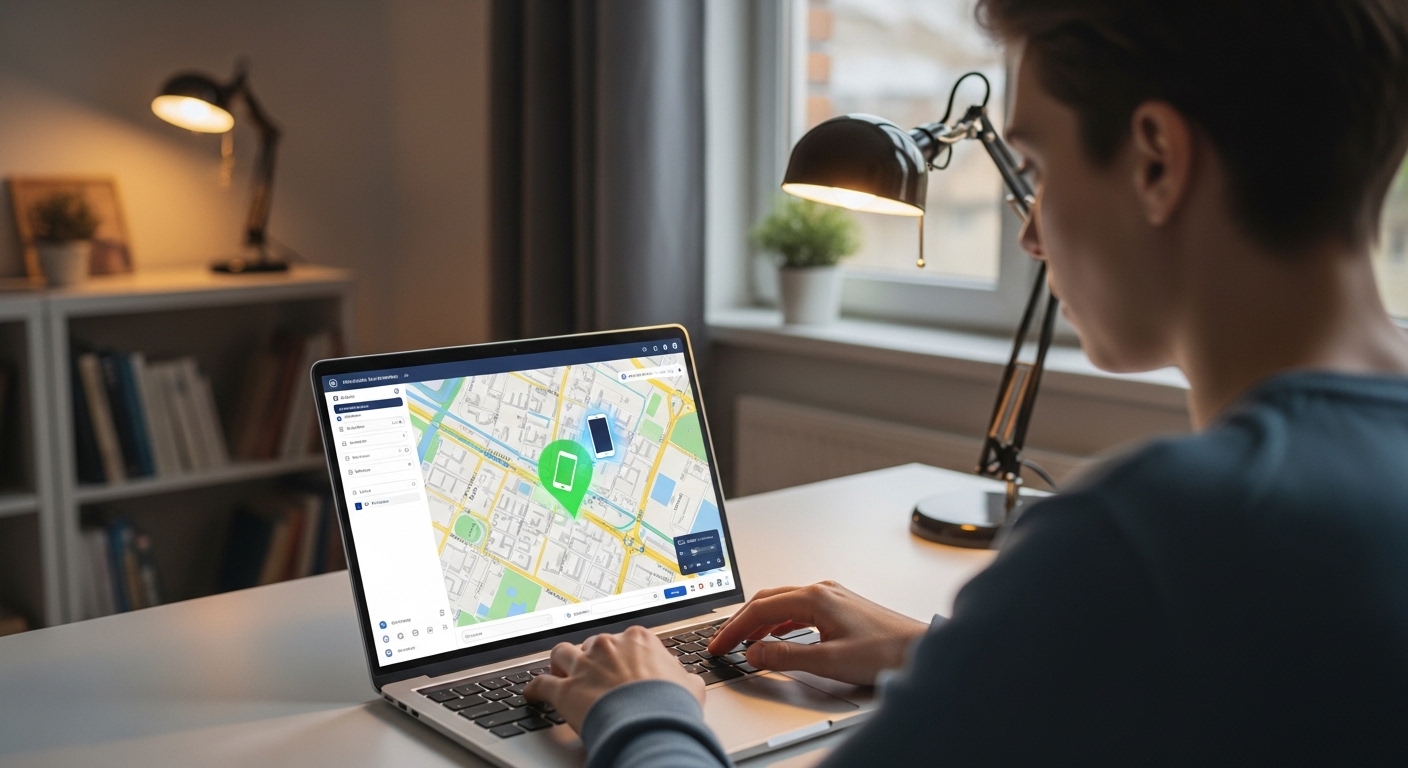
Google Find My Device is the fastest way to find a lost phone on Android using any browser.
Visit google.com/android/find, sign in with your Google account, and your phone’s position appears on a map.
The interface works on any device with internet access. You don’t need another Android phone nearby.
Make sure your lost phone had location services enabled and was signed into Google beforehand. Without these, the service can only show the last saved position.
Here are the exact steps to track your phone right now.
Once you see the location, choose from three main actions.
Play Sound makes the phone ring at full volume for five minutes, even if it was on silent.
Google reports that Find My Device helps millions of users locate lost phones each year, with most successful recoveries happening within the first few hours.
This feature is perfect when the phone is nearby but hidden under cushions or inside a bag.
The ring continues until you find and silence it manually.
Next, use Secure Device to lock the screen remotely.
You can add a custom message with your contact number for anyone who finds it.
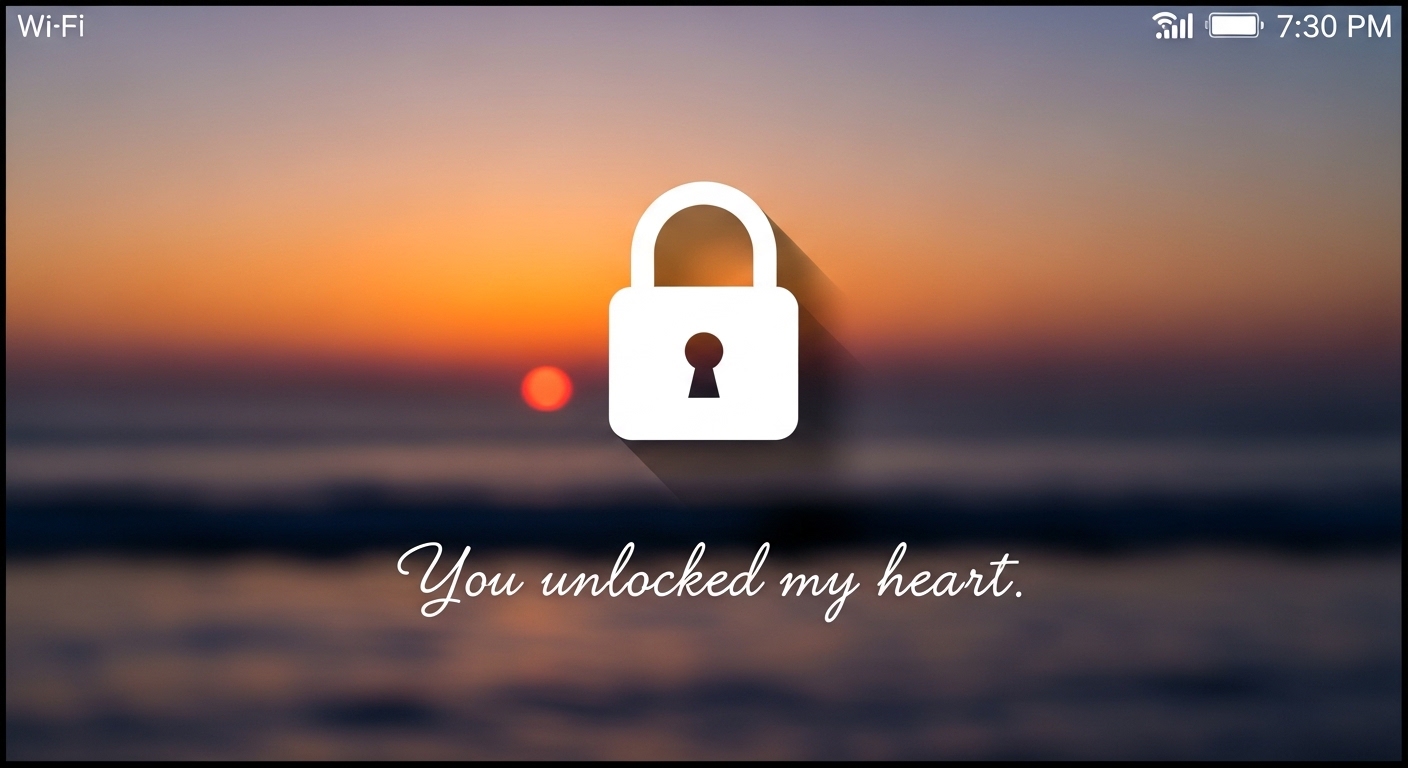
Lock & Message: Remote lock prevents unauthorized access and displays your contact info. Notifications stay hidden to protect your privacy.
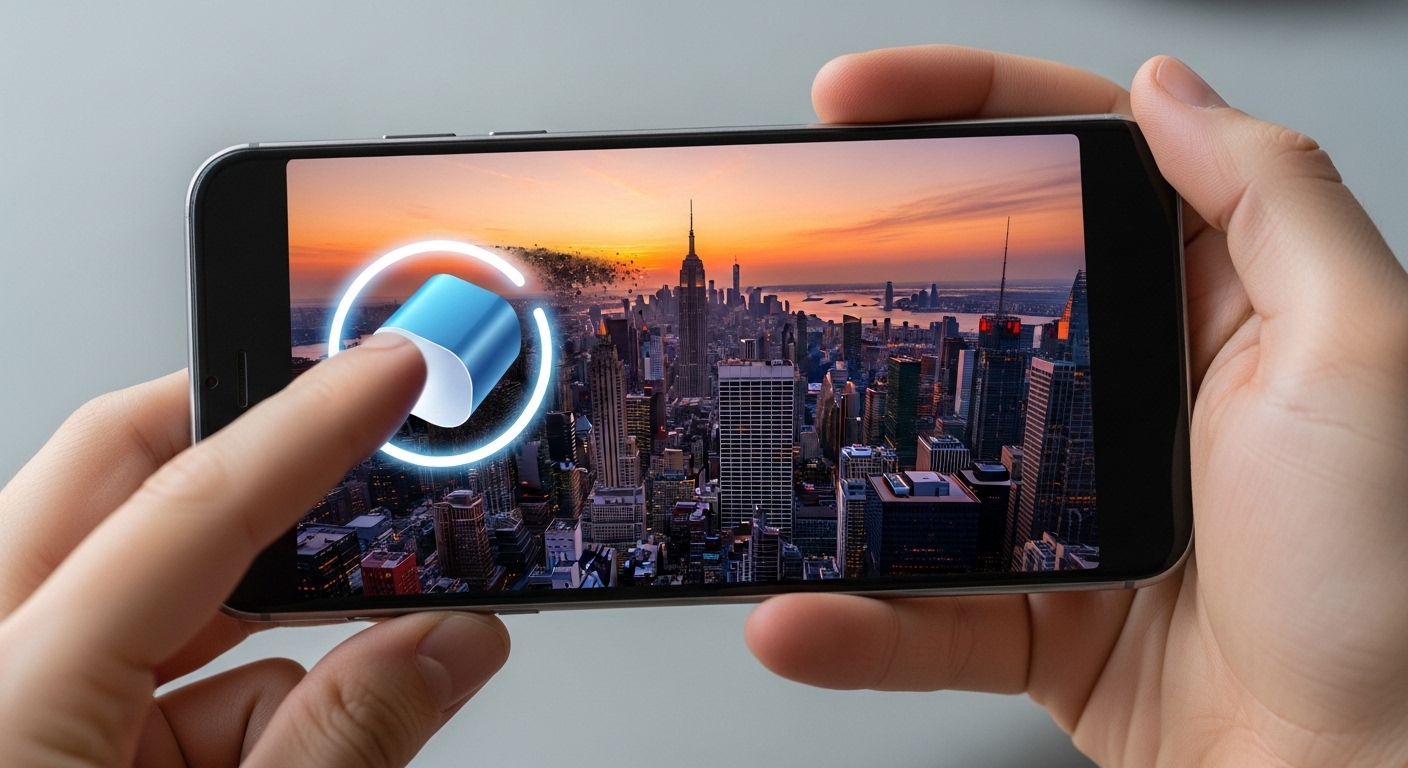
Erase as Last Resort: Select Erase Device to wipe everything permanently. This removes all personal data but stops further tracking afterward.
Before erasing, back up important data through linked cloud services. This action is irreversible and best reserved for theft situations.
Erasing your phone is permanent. You lose all tracking ability afterward, so only use this if recovery seems impossible and your data is at risk.
Google Find My Device updates in real time when the phone connects to Wi-Fi or mobile data.
Keep the page open and refresh for movement updates.
“The most effective security measures are often the simplest: strong unique passwords, two-factor authentication, and keeping your software updated. Most breaches exploit basic oversights, not sophisticated vulnerabilities.”
Alex Rivera, CEH, OSCP
How Do You Find a Lost iPhone Using Apple Find My?
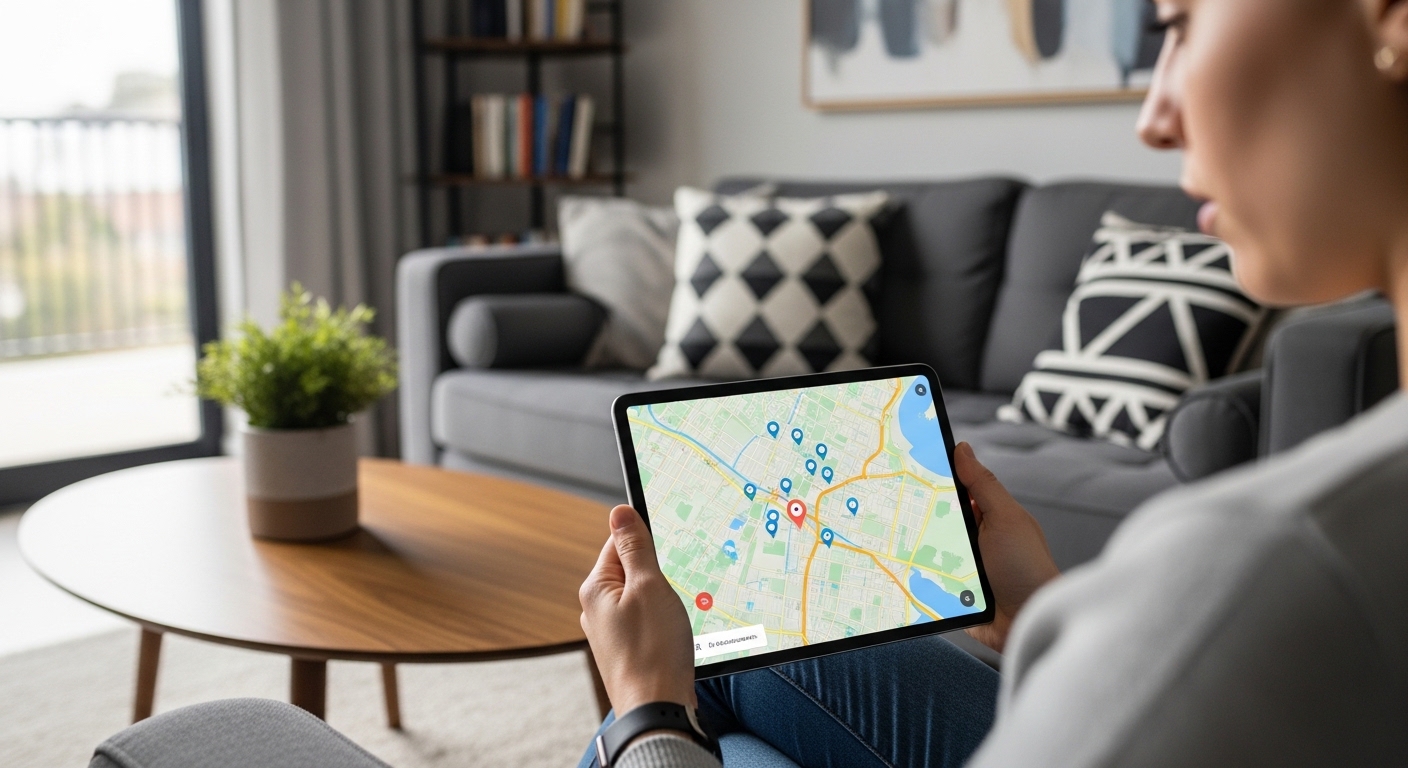
Apple’s Find My service tracks a lost iPhone from any browser.
Log into icloud.com/find or open the Find My app on another Apple device signed into the same Apple ID.
The map shows the exact or last known location. All connected devices appear in a list for easy selection.
Activate Find My in Settings under your name before you lose the phone. Without prior setup, only the last known location appears briefly.
Follow these steps to start tracking immediately.
Go to icloud.com/find in any browser and sign in with your Apple ID.
Click the lost iPhone in the device list and view the map with available options.
Play Sound sends a loud chime to the device.
It plays even when the iPhone is muted or in Do Not Disturb mode.
This works well in crowded places like offices, restaurants, or cars. The sound continues until you stop it manually from the dashboard.
Apple’s Find My network uses nearly two billion active devices worldwide to help locate lost phones, even when they are offline or powered down.
Activate Lost Mode to lock the device remotely.
You can display a custom message and callback number on the lock screen for the finder.
Lost Mode also disables Apple Pay and hides notifications. Tracking stays active so you continue receiving location updates on the map.
If recovery seems unlikely, choose Erase iPhone as the final step. This wipes all data securely but ends location tracking permanently.
Always try Play Sound and Lost Mode first. Erasing is permanent and removes your ability to find a lost phone through Apple services.
What About What to Do If Your Phone Is Offline or Turned Off?
You can still find a lost phone even when it is dead or powered down.
Built-in services show the last known position and may receive updates via crowdsourced Bluetooth networks when nearby devices detect it.
Google uses its network of Android phones to relay encrypted location signals. Apple does the same through its vast ecosystem of devices.
Offline finding works automatically if enabled beforehand. No extra setup is required beyond standard location permissions in your phone’s settings.
Check the map for the last recorded spot and note the timestamp.
This helps you estimate when the phone went offline and where to start looking.
Contact your carrier for additional help. They can sometimes use IMEI data to assist law enforcement in locating the device.
File a police report to strengthen these requests. Provide the last known location from the tracking service to speed up the investigation.
For supported models, tracking continues briefly even after the battery drains completely.
This narrow window gives you one last chance to pinpoint the location.
What About Can You Track a Lost Phone by Phone Number Alone?

Trying to find lost phone solely by its number is largely a myth for regular users.
No public service lets you input a number and see live location without prior setup or law enforcement involvement.
Carriers can access location data, but they only share it with police after a formal report.
They require proof of ownership and typically an IMEI number.
The FCC requires carriers to locate phones within 50 meters for emergency 911 calls, but this precision is not available to individual consumers for personal searches.
File a police report first if theft is suspected.
This opens the door for carrier-level tracking that you cannot access on your own.
Apps or websites claiming instant phone-number tracking are almost always scams.
Stick to account-linked tools like Find My Device or Find My for reliable results.
Prevent future issues by recording your IMEI now. Dial *#06# on your phone to display it, then store it somewhere safe.
What About Other Built-In Methods That Work Without Apps?
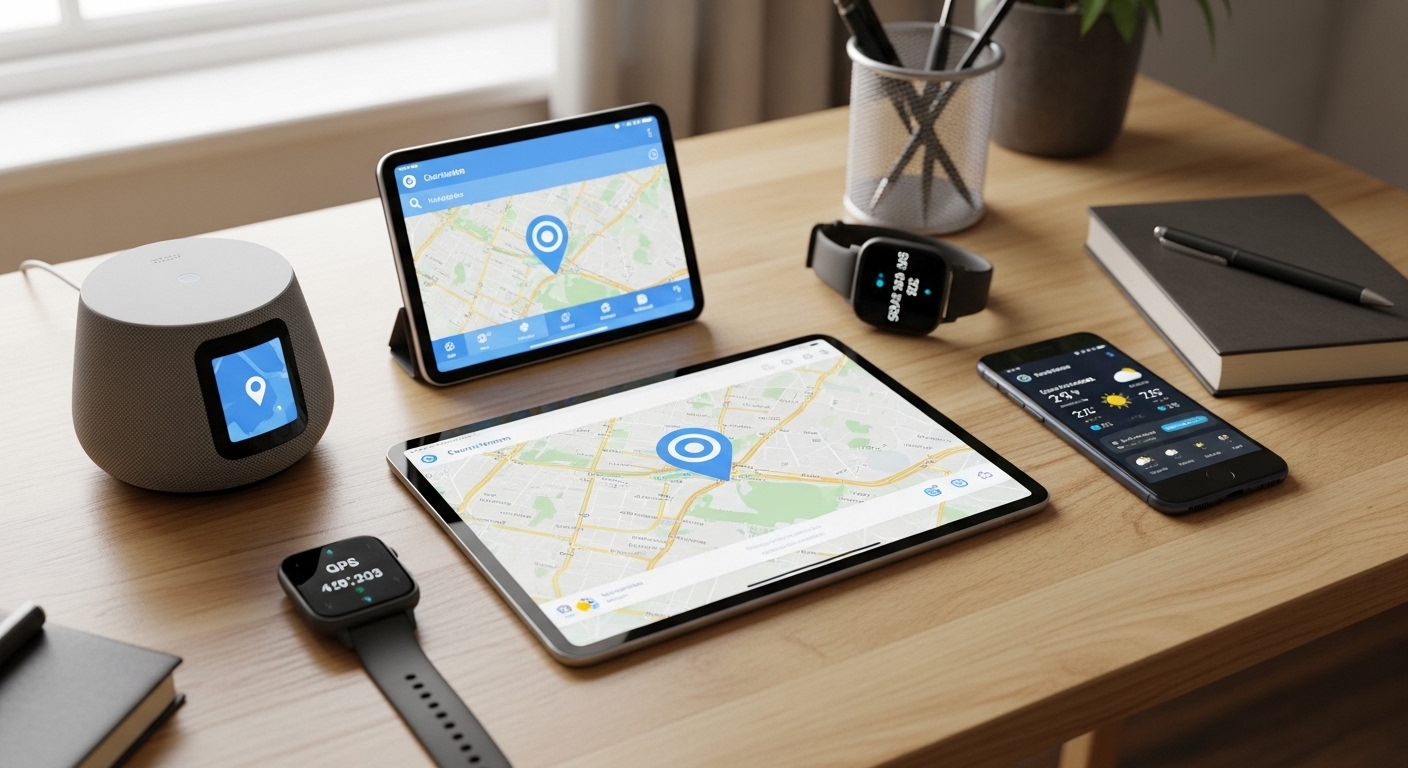
Beyond the main tracking services, several other built-in tools help you find a lost phone without installing anything extra.
Each method works independently, so try whichever matches your setup first.
Samsung users get an extra advantage with offline Bluetooth detection through the Galaxy device network.
What About Why You Should Set Up Tracking Before You Lose Your Phone?
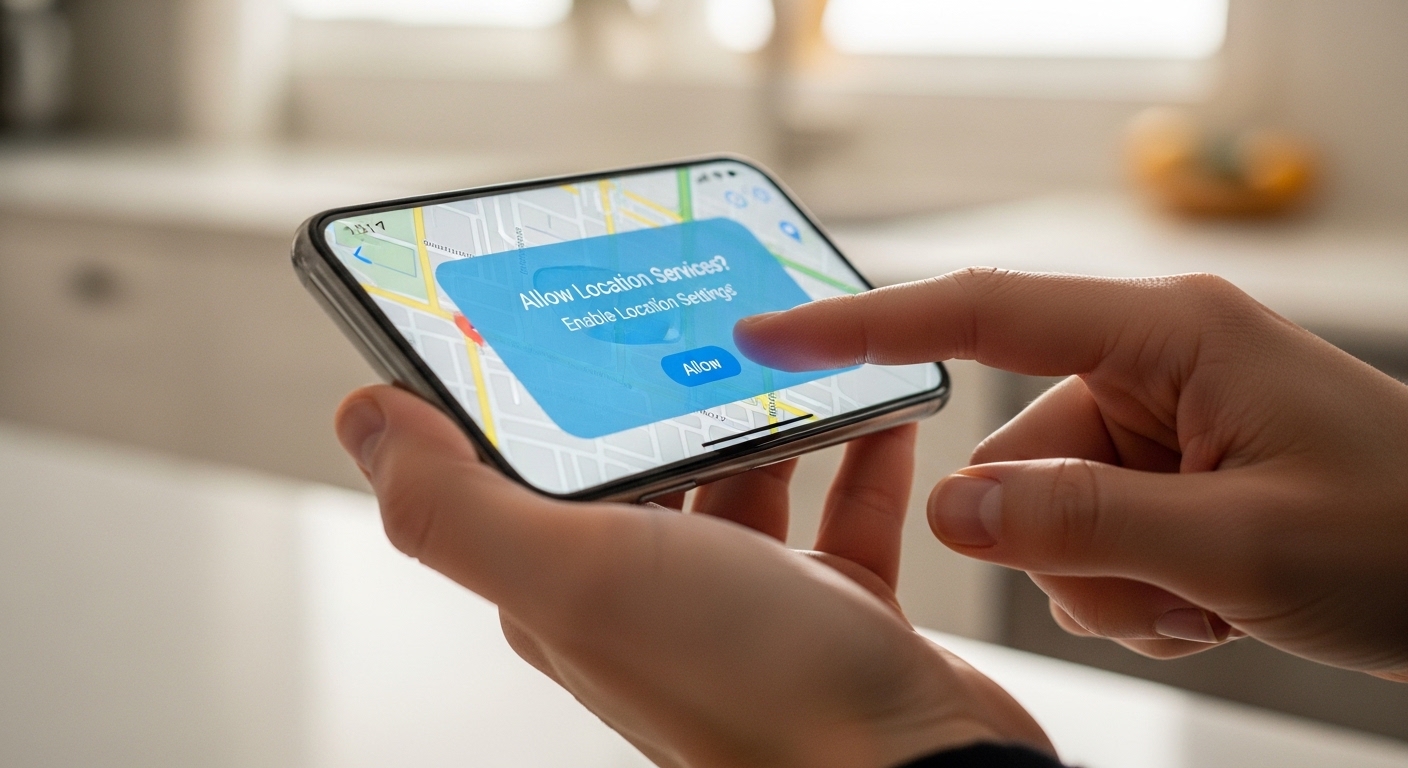
Prevention beats scrambling after a loss every time.
Setting up tracking today means a quick recovery tomorrow.
Enable Google Find My Device or Apple Find My in your phone’s settings today so everything is ready when disaster strikes.
Turn on location services and keep the phone signed into your main account.
These small steps make the difference between quick recovery and total loss.
For more comprehensive monitoring, consider setting up Hoverwatch beforehand.
It provides GPS location, call recording, SMS access, and tracking across apps like WhatsApp and Facebook.
Keep location history active in Google Maps as a backup layer.
These preparations ensure you can find a lost phone even in the trickiest situations.
“Digital security is a shared responsibility. Parents monitoring their children, employers securing company devices, and individuals protecting their own accounts all contribute to a safer ecosystem.”
Dr. Sarah Chen, Digital Forensics Expert, SANS Institute
Final Thoughts
Google Find My Device and Apple Find My let you find a lost phone for free from any browser without downloading anything extra.
Set them up today, act fast before the battery dies, and try sound or lock features before erasing as a last resort.
Frequently Asked Questions
It still shows the last known location, so check that first and head there. Give it some time and refresh — the crowdsourced Bluetooth network might pick it up when another Android phone passes nearby. Also try Google Maps Timeline for recent location history, and if you have a Google Home speaker, ask it to ring the phone just in case it is within earshot.
Unfortunately, a factory reset signs out all accounts and kills tracking through Find My Device or Find My. The good news is that Factory Reset Protection on Android and Activation Lock on iPhone still require your credentials to set up the phone again, which deters thieves from using it. File a police report immediately with your IMEI — that is your best path forward after a reset.
Start by calling the restaurant directly — staff hold found phones all the time and can usually get it back to you quickly. Use Find My Device or Find My to confirm the phone is still at that location. If you see it moving away from the restaurant, then definitely file a police report and share the tracking data with them.
No — active tracking requires location services to be on. You might see a brief last-known position, but it will not update. Some partial detection can still work through Bluetooth networks if those were enabled, but it is unreliable. Turn on location services now so you are not stuck with zero data if it happens again.
Log into Find My Device or iCloud Find My using whichever Google or Apple account is on the kid's phone. Hit Play Sound immediately so the kid can hear it ring nearby. If it is a family-shared setup, check from any other device in the group. Once you get it back, set up proper tracking together so you are not scrambling next time.