How to Find a Lost Android Phone Without an App
Lost your Android phone? You can find lost Android phone right now using tools already built into your device — no extra apps needed.
Google Find My Device works even if your phone is on silent, and it only takes 30 seconds to locate it.
This guide covers every built-in method to find lost Android phone, what to do when your phone is offline, and how to protect your data if recovery isn’t possible.
If your phone was stolen, do not attempt to retrieve it yourself. Use the location information to file a police report. Your personal safety is more important than any device.
How Can You Find Lost Android Phone with Google?
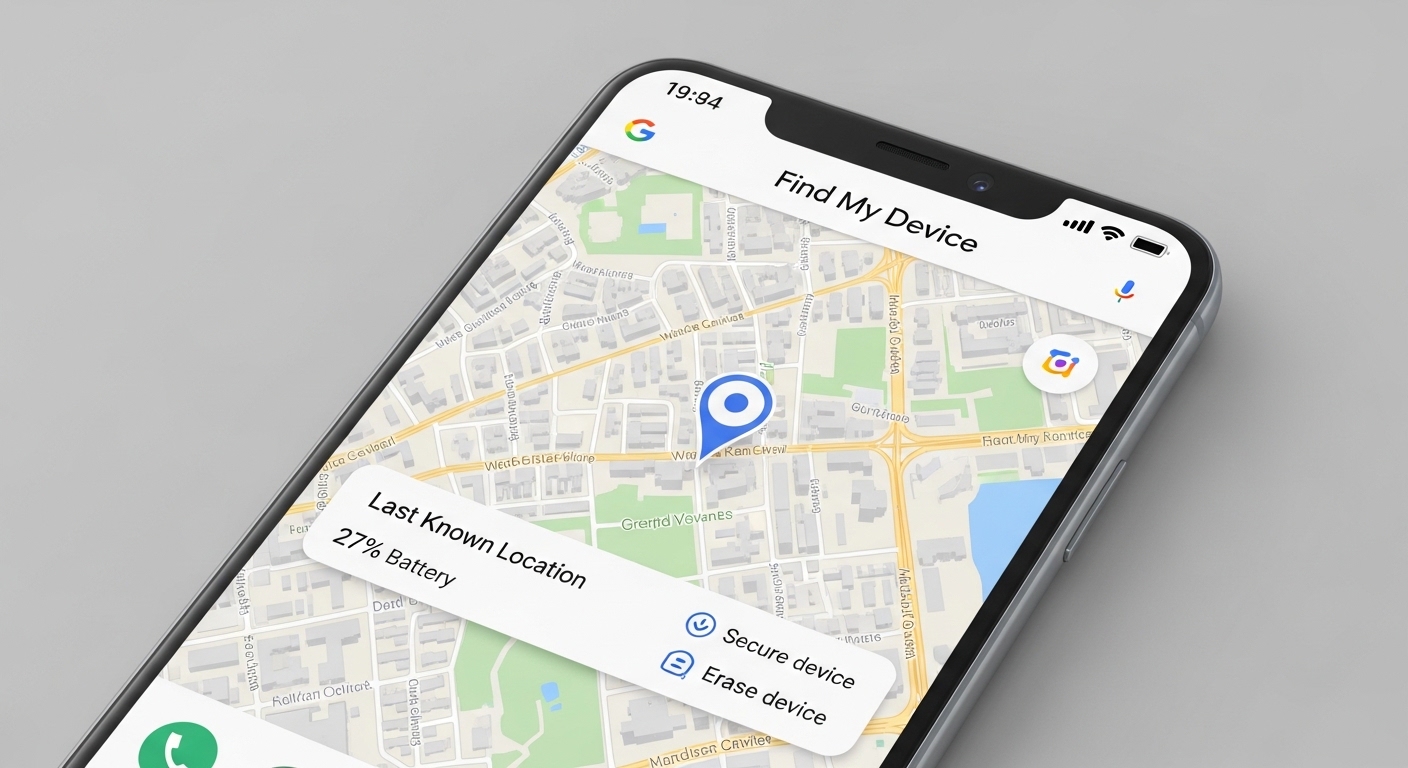
Google Find My Device is pre-installed on every Android phone running Android 5.0 or later. It uses your phone’s GPS, Wi-Fi, and cellular data to pinpoint its location on a map.
The service works through your Google account — the same one you use for Gmail and Google Play. As long as your phone is signed in and has an internet connection, you can locate it from any browser or another Android device.
| Requirement | Why It’s Needed | How to Check |
|---|---|---|
| Google account signed in | Links the phone to your identity | Settings → Accounts → Google |
| Location services on | Enables GPS tracking | Settings → Location → toggle on |
| Find My Device enabled | Allows remote access | Settings → Security → Find My Device |
| Internet connection | Communicates location to Google | Wi-Fi or mobile data active |
| Google Play visibility on | Makes device findable | Play Store → Settings → Visibility |
Check right now: Settings → Security → Find My Device → toggle on. Takes 10 seconds and could save your phone later.
How Can You Locate Your Phone Using a Browser?
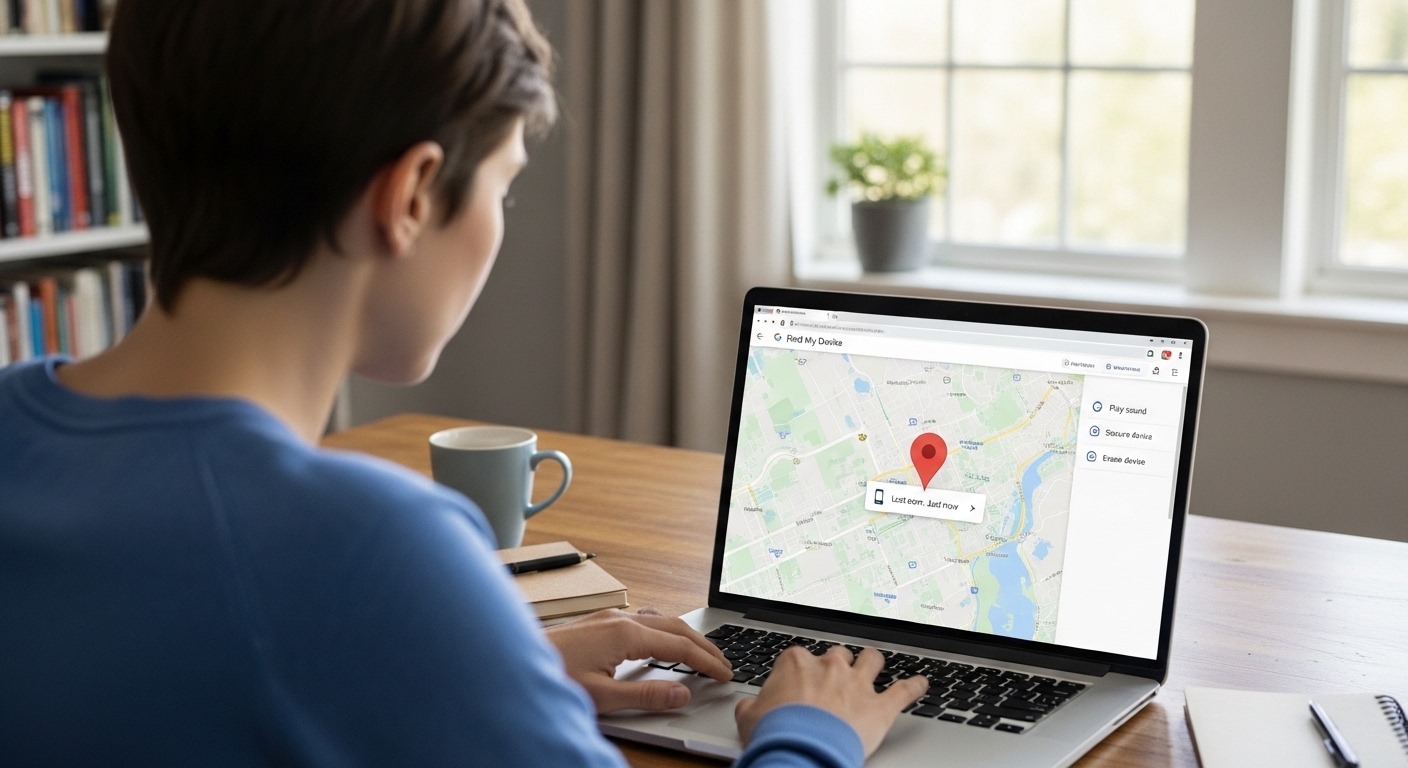
Open any web browser on a computer, tablet, or someone else’s phone and go to google.com/android/find. Sign in with the Google account linked to your lost phone.
Your phone’s location appears on a map within seconds. The interface shows the battery level, connection status, and when the location was last updated.
“The biggest mistake people make is waiting too long. The moment you realize your phone is missing, locate it immediately.
Every minute of delay is a minute the battery drains or the phone moves farther away.”
Alex Rivera, CEH, OSCP
If Find My Device shows your phone at an unfamiliar location, use the Secure Device option first to lock it, then use the location to file a police report.
Do not go to retrieve it from a stranger’s location yourself.
What About Samsung Find My Mobile?
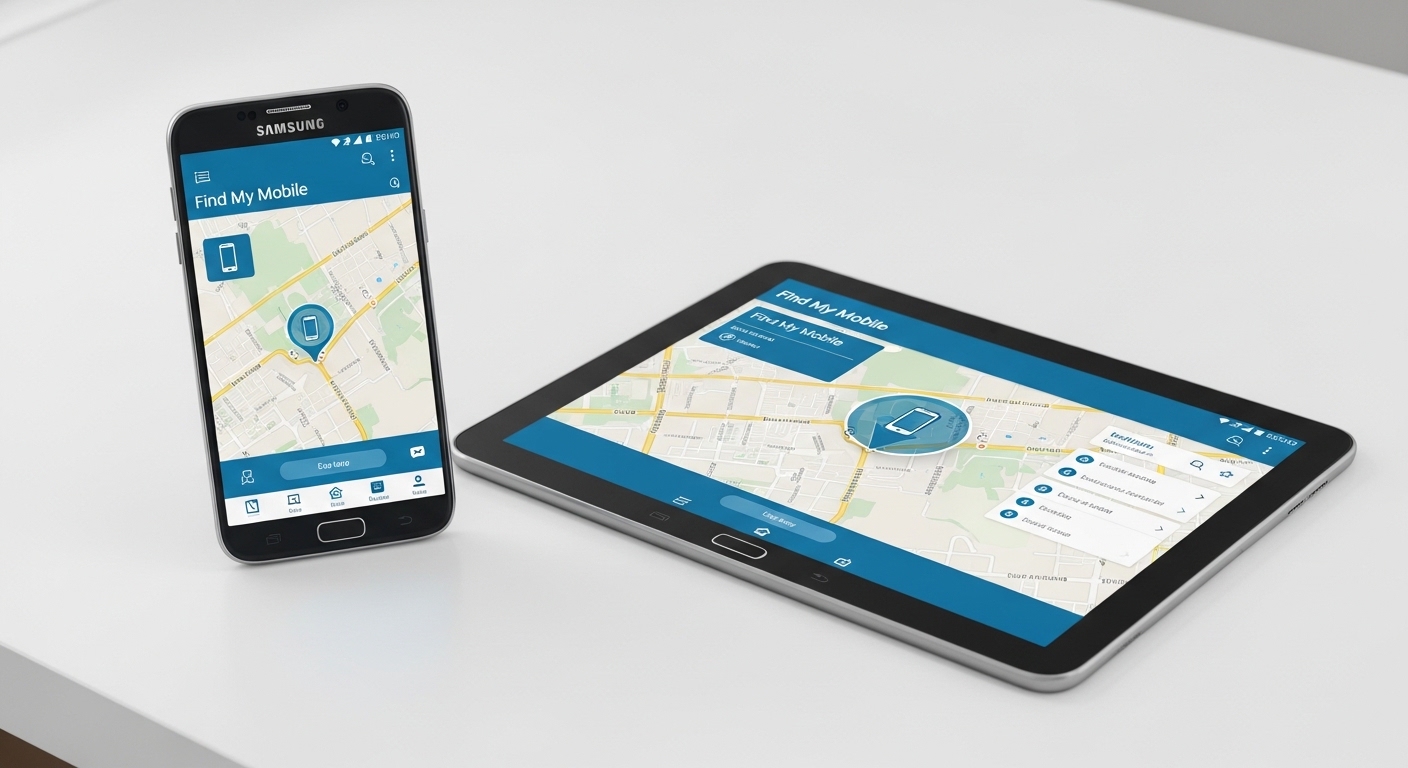
Samsung Galaxy owners have an additional tracking tool — Samsung Find My Mobile. It works alongside Google Find My Device and offers features that Google doesn’t, including offline tracking.
| Feature | Google Find My Device | Samsung Find My Mobile |
|---|---|---|
| Locate on map | Yes | Yes |
| Ring remotely | Yes (5 min) | Yes (1 min) |
| Lock remotely | Yes | Yes |
| Erase remotely | Yes | Yes |
| Offline finding | Limited (last known location) | Yes (via nearby Galaxy devices) |
| Back up remotely | No | Yes |
| Retrieve calls/messages | No | Yes |
| Extend battery life | No | Yes (Ultra Power Saving) |
Samsung’s Find My Mobile Network uses 500 million+ Galaxy devices worldwide to relay your lost phone’s location — even without internet.
Using both Google Find My Device and Samsung Find My Mobile together gives you the most comprehensive tracking coverage. Enable both before you need them.
Can You Find Your Phone When It’s Offline?
When your phone is off, out of battery, or has no internet connection, tracking becomes harder but not impossible. Several methods can still help you locate it.
Phone off for 48+ hours with no location? Erase it remotely via Find My Device. The command executes when the phone next connects to the internet.
This uses nearby Android phones to detect your lost device via Bluetooth even when it’s offline. The feature is available on Pixel and select Android phones running Android 9 or later.
What Should You Do Immediately After Losing Your Phone?
Speed matters. Follow these steps in order within the first 15 minutes to maximize your chances of recovering the phone and minimizing potential damage.
After securing your accounts, take these additional steps to protect yourself and increase recovery chances.
Save your IMEI now: dial *#06# or check myaccount.google.com → Security → Your devices. You’ll need it for police reports and carrier blacklisting.
How Can You Protect Your Phone Before It Gets Lost?
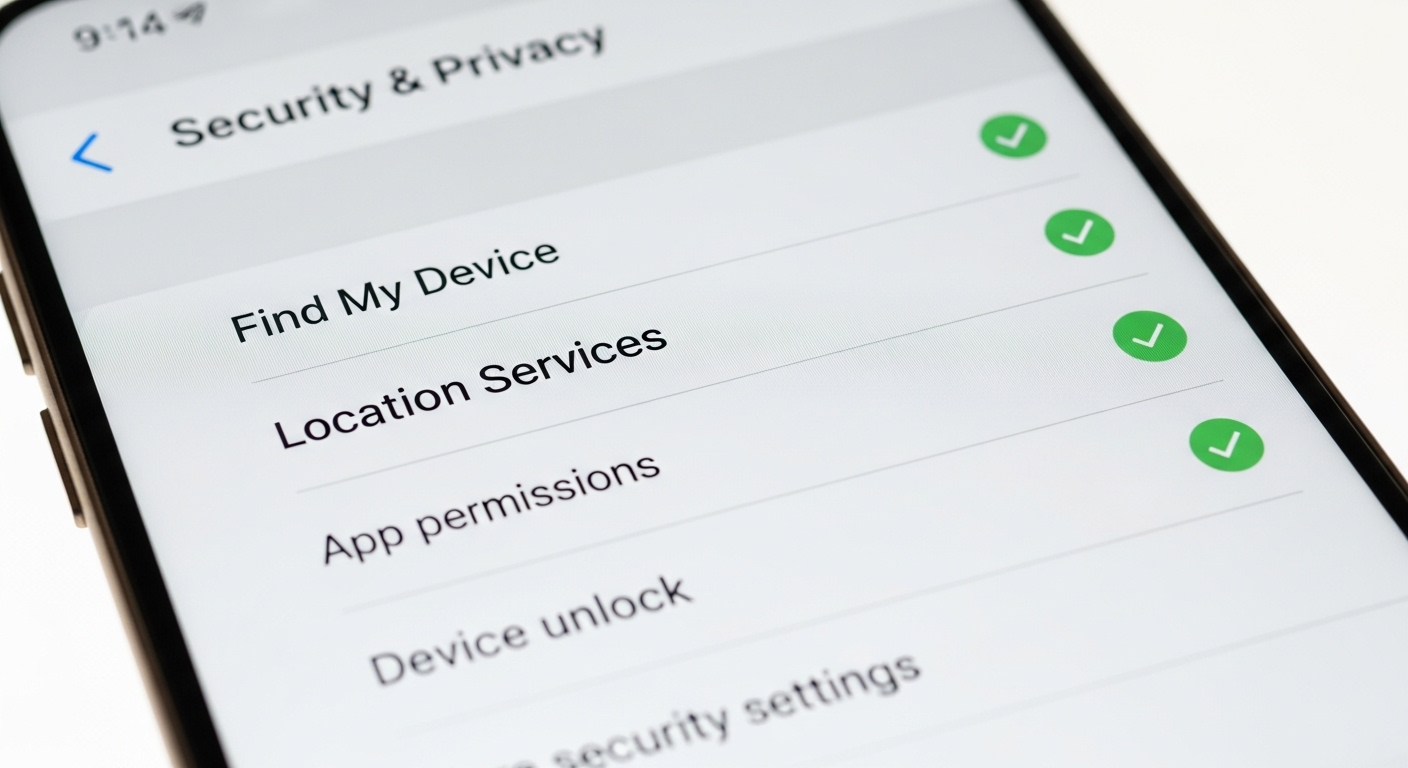
Setting up tracking and security features now takes 5 minutes and makes recovering a lost phone dramatically easier. These settings should be the first thing you configure on any new Android phone.
| Setting | Where to Find It | What It Does |
|---|---|---|
| Find My Device | Settings → Security | Enables remote locate, ring, lock, erase |
| Location Services | Settings → Location | Allows GPS tracking of your device |
| Google Location History | Google Maps → Settings → Timeline | Records location history for review |
| Screen Lock | Settings → Security → Screen Lock | Prevents unauthorized access (use PIN 6+ digits) |
| Google Backup | Settings → System → Backup | Backs up data to restore on a new phone |
| SIM Card Lock | Settings → Security → SIM Lock | Prevents SIM removal and reuse |
Parents who want additional tracking capabilities for their children’s phones can use dedicated monitoring tools. Apps like Hoverwatch provide real-time GPS tracking, geofencing alerts, and location history that go beyond what Google Find My Device offers.
“I’ve helped hundreds of people recover lost phones, and the ones who find them are almost always the ones who set up Find My Device before losing it.
It’s like insurance — useless to buy after the house burns down.”
Dr. Sarah Chen, Digital Security Consultant
Check all six settings in the table above right now. If even one is disabled, your chances of recovering a lost phone drop significantly. Prevention is always easier than recovery. Every Android user should know how to find lost Android phone before the situation arises.
Can Third-Party Tracking Help After Your Phone Is Lost?
If you didn’t enable Find My Device before losing your phone, third-party options are extremely limited. Most tracking apps require pre-installation and can’t be activated remotely on a lost device.
According to Lookout Mobile Security, 70 million smartphones are lost each year in the US alone. Only 7% of lost phones are eventually returned to their owners — most because they had tracking enabled.
The takeaway is clear — every tracking tool requires setup before loss. The time to protect your phone is now, not after it’s gone.
Final Thoughts
Google Find My Device and Samsung Find My Mobile are already on your phone.
Open Settings → Security right now, confirm Find My Device is enabled, and turn on Location Services. These two steps are all you need to find lost Android phone from any browser.
If your phone is already lost, go to google.com/android/find immediately. Lock it, ring it, or erase it — then change your passwords and contact your carrier. Speed is everything.
Frequently Asked Questions
Google Find My Device shows the last known location before the phone powered down. Samsung Galaxy users with Offline Finding enabled can get updated locations through nearby Galaxy devices even when the phone is off. Google's new Find My Device Network can also locate powered-off Pixel phones for a limited time. Check Find My Device immediately — the sooner you look, the more accurate the last known location will be.
Find My Device needs an internet connection to report its location, so it won't update in real-time without Wi-Fi or cellular data. However, Samsung's Offline Finding and Google's Find My Device Network use Bluetooth to communicate through nearby phones, bypassing the need for a direct internet connection. The last known location from before the internet was lost is always available.
A factory reset removes the lock, but Google's Factory Reset Protection (FRP) means they still need your Google account credentials to set up the phone. Without your Google login, the phone is essentially a brick. This is why signing into a Google account and enabling Find My Device is critical — it makes stolen phones worthless to thieves.
Carriers can flag your IMEI on the national blacklist, which prevents the phone from being activated on any US carrier. Some carriers offer location services through family plans, but they generally cannot provide real-time GPS tracking to customers. Provide the IMEI to police — they have tools to check pawn shop databases and can request carrier location data with a warrant.
Check Google Maps Timeline at timeline.google.com — if Location History was enabled (it often is by default), you can see where your phone has been. Contact your carrier to suspend service and blacklist the IMEI. File a police report with your phone's serial number and IMEI. Change all passwords from another device. For future phones, always enable Find My Device during initial setup.